
Download the application from Google Play Store.
Logging in
-
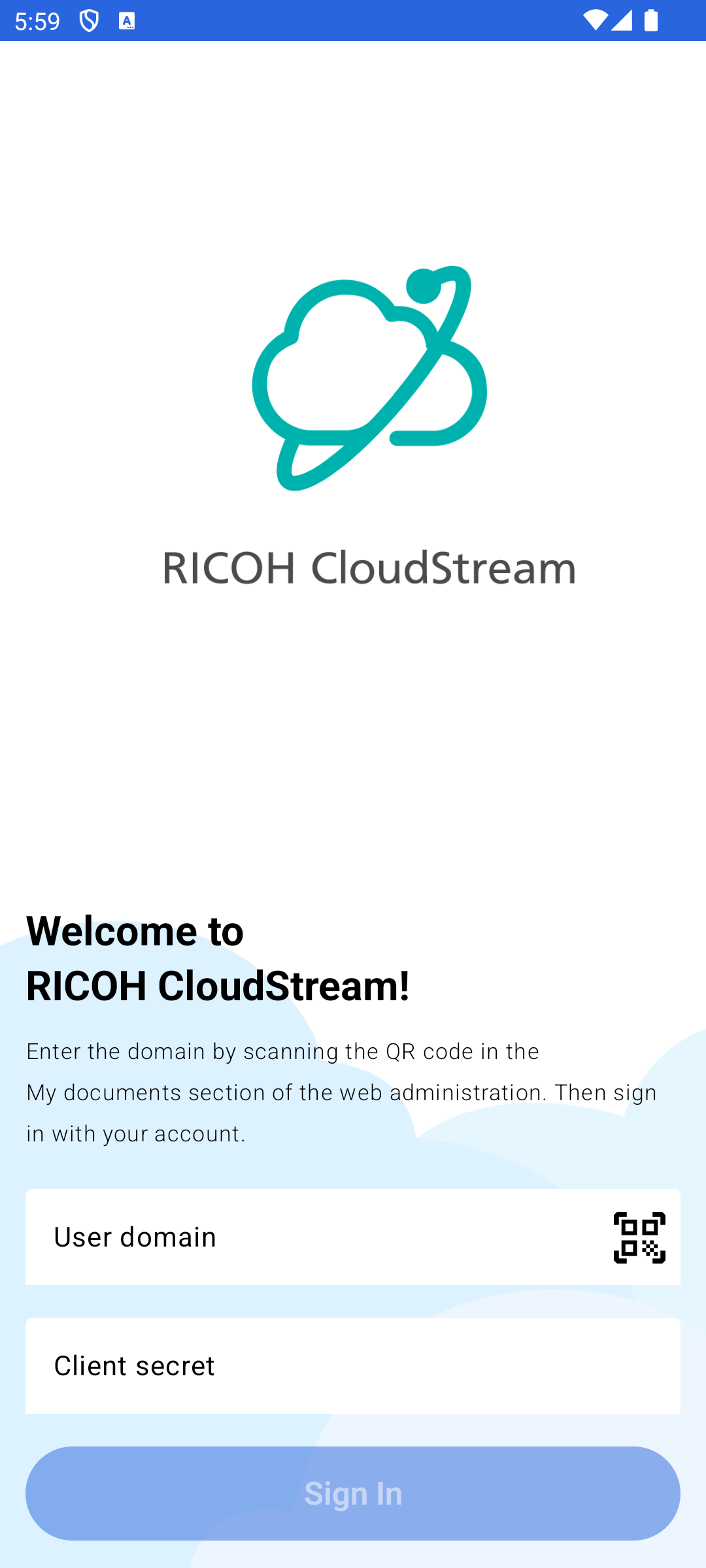
After you start the application for the first time, you will see the login screen .
-
Enter the User Domain. You can enter it manually or by scanning the configuration QR code that you can find in PMC Web UI.
-
Tap Sign in and enter your PMC username and password or use other login methods, for example via your Microsoft or Google account. The available login methods depend on how your administrator configured the app.
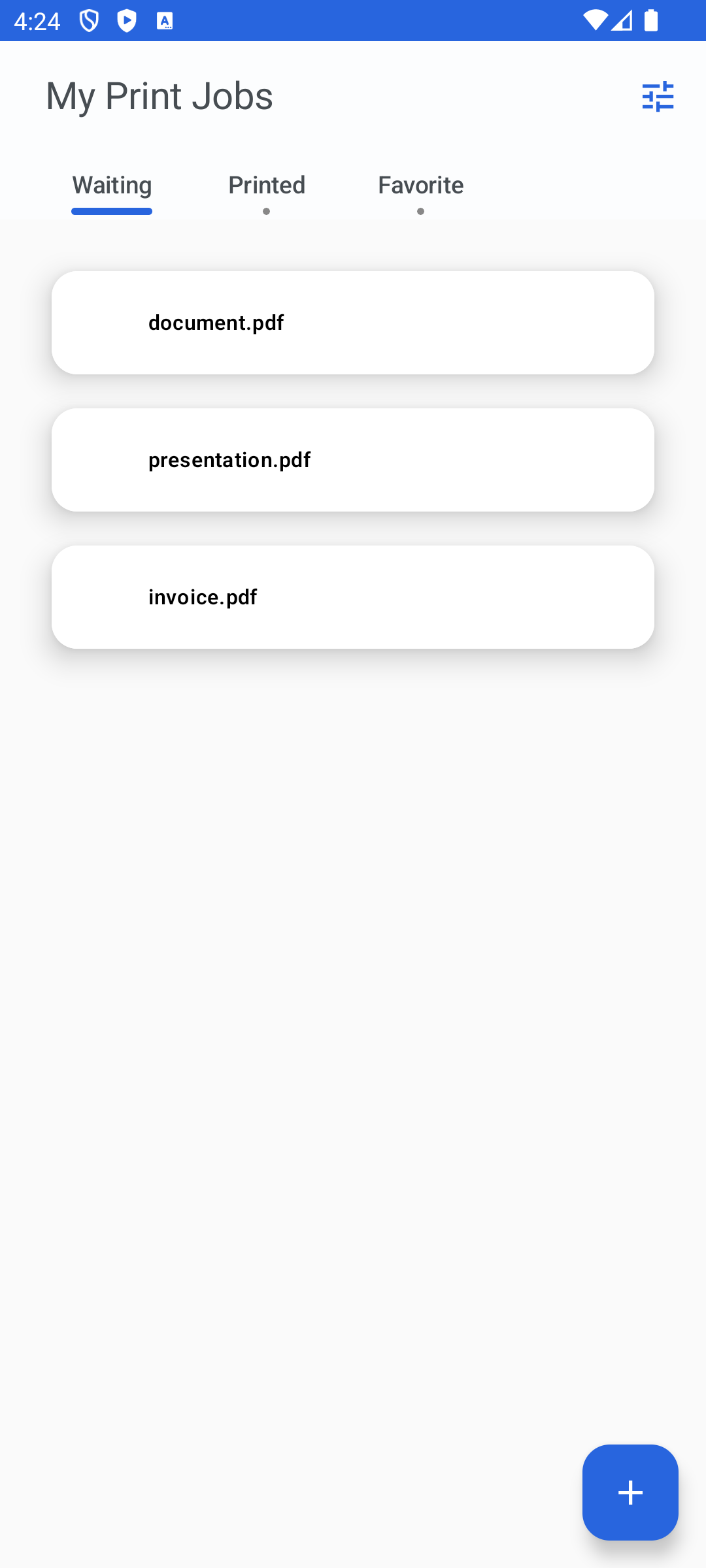
Job list
After a successful login, you will see all of your documents.
Submitting print jobs
Supported formats
-
BMP
-
DOC
-
DOCX
-
GIF
-
HEIF
-
JPEG
-
ODP
-
ODS
-
ODT
-
PDF
-
PPT
-
PPTX
-
PNG
-
RTF
-
WebP
-
HTML
-
XLS
-
XLSX
-
Various forms of plain text
Submitting print jobs from the apps via the share menu
This method works with any application that supports printing.
-
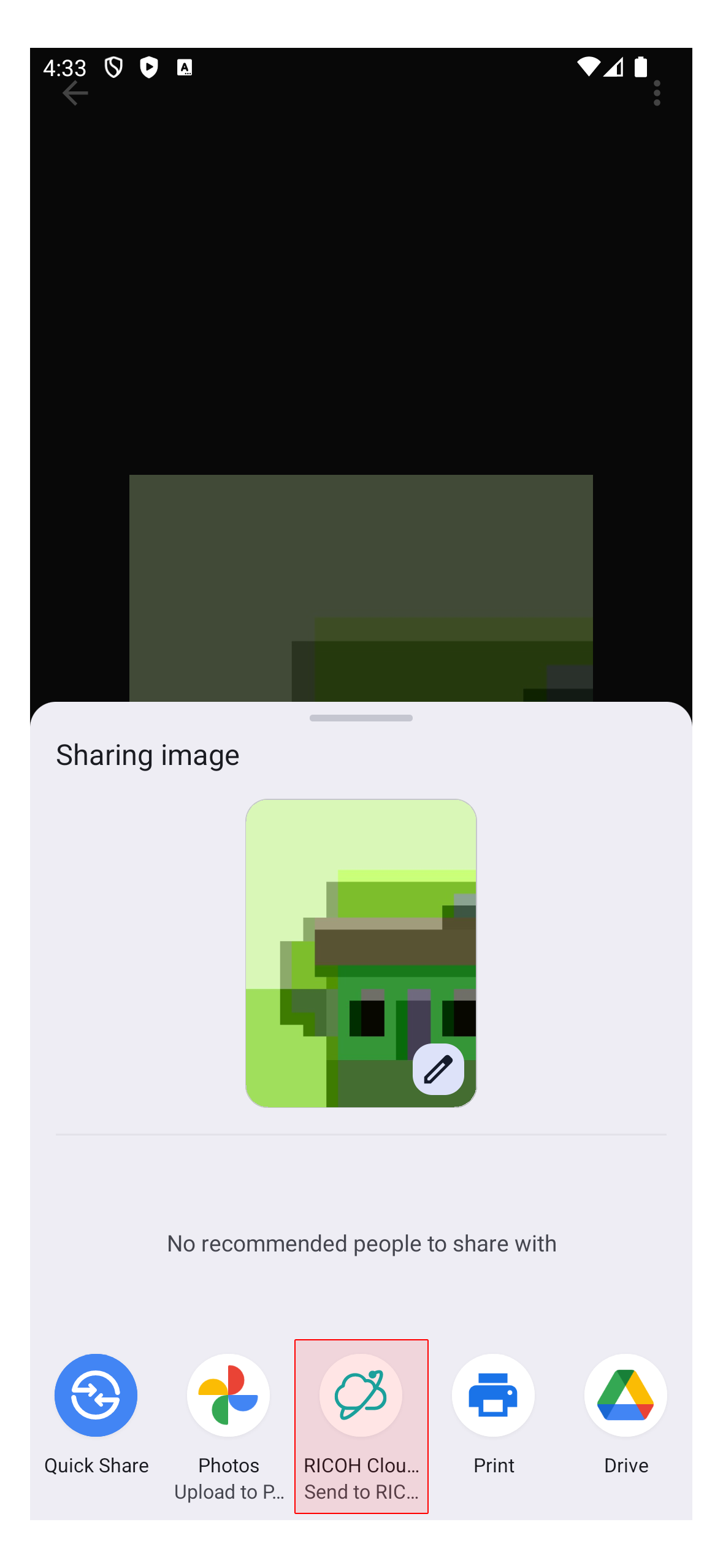
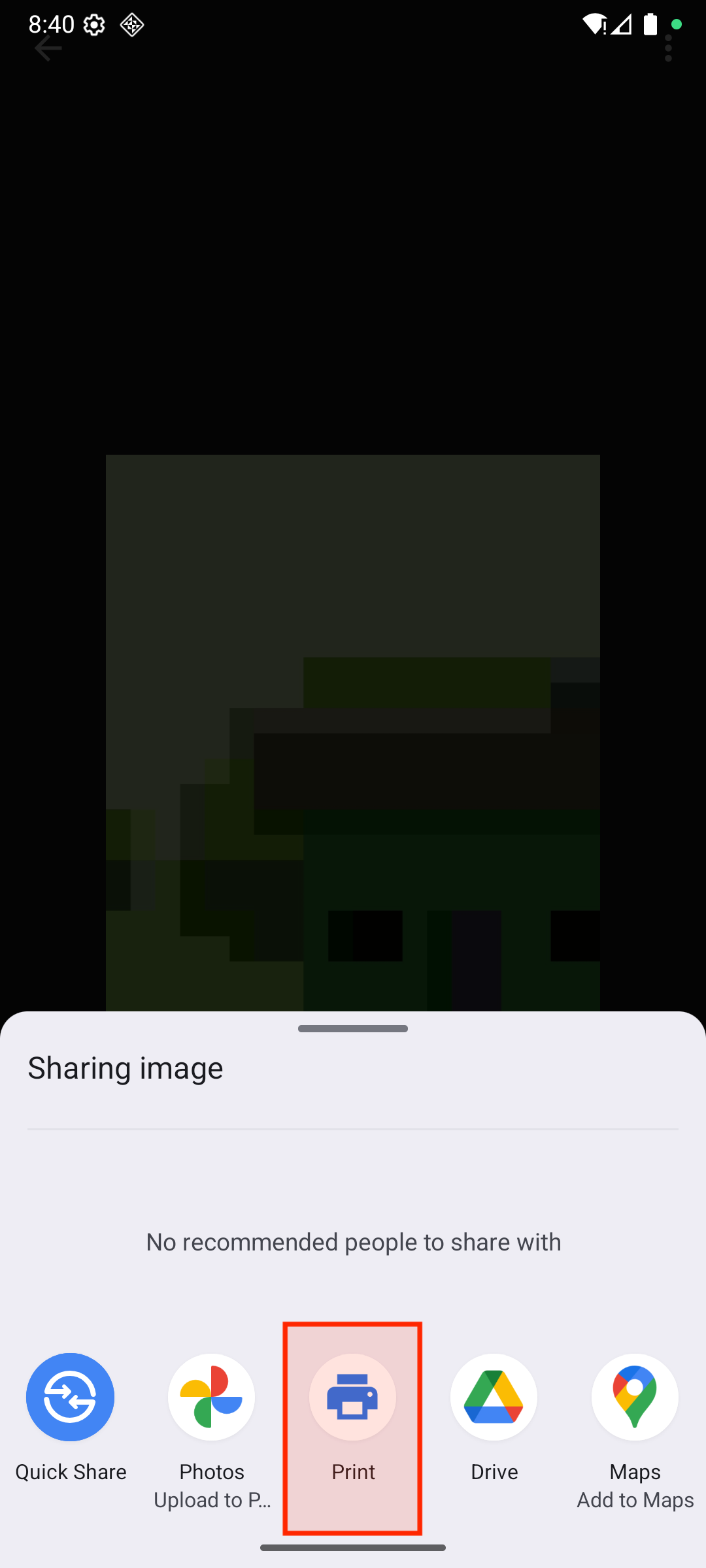
Tap the share menu in the app from which you wish to print.
-
Tap the PMC icon.
-
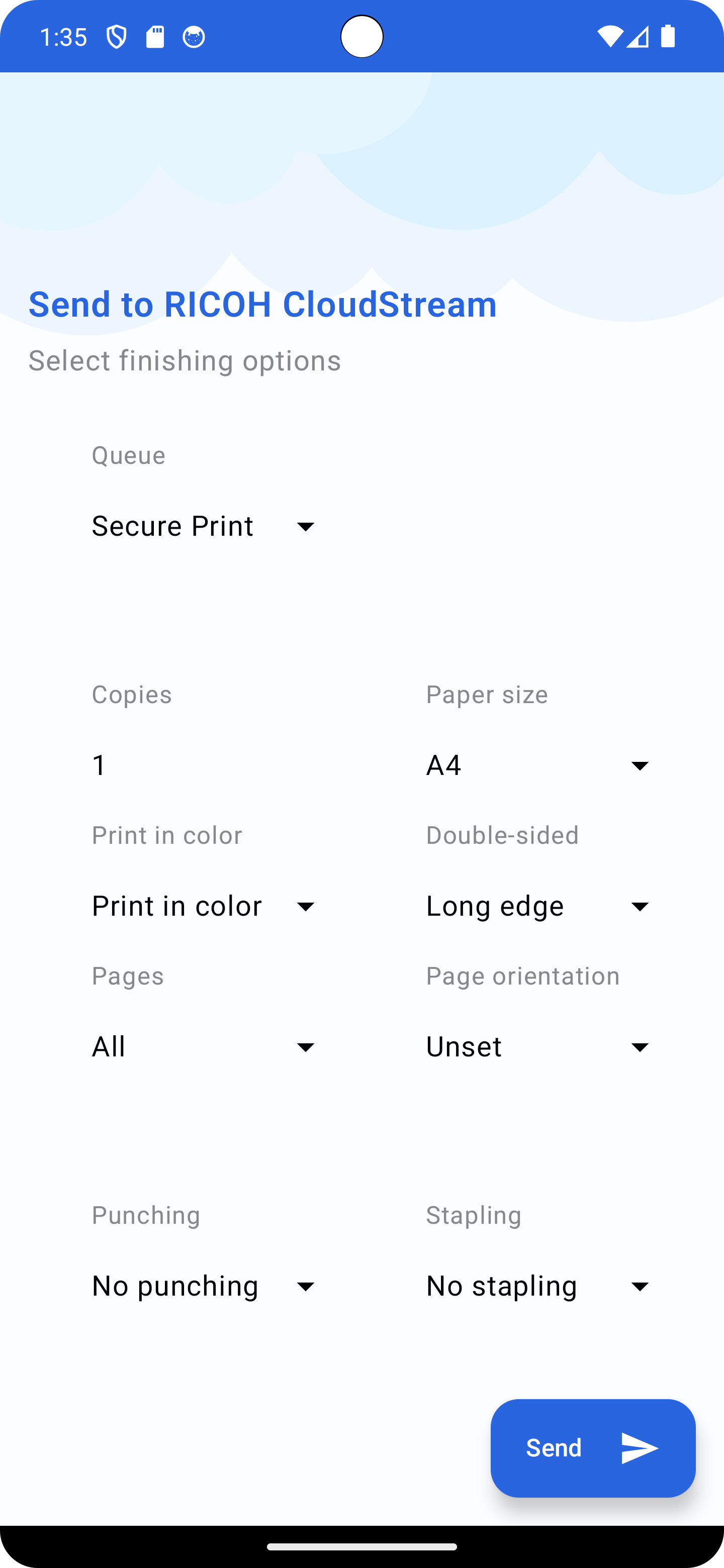
Modify the finishing options according to your needs. If the chosen file is protected by a password, a dialog box will prompt you to enter the password.
-
Tap Send.
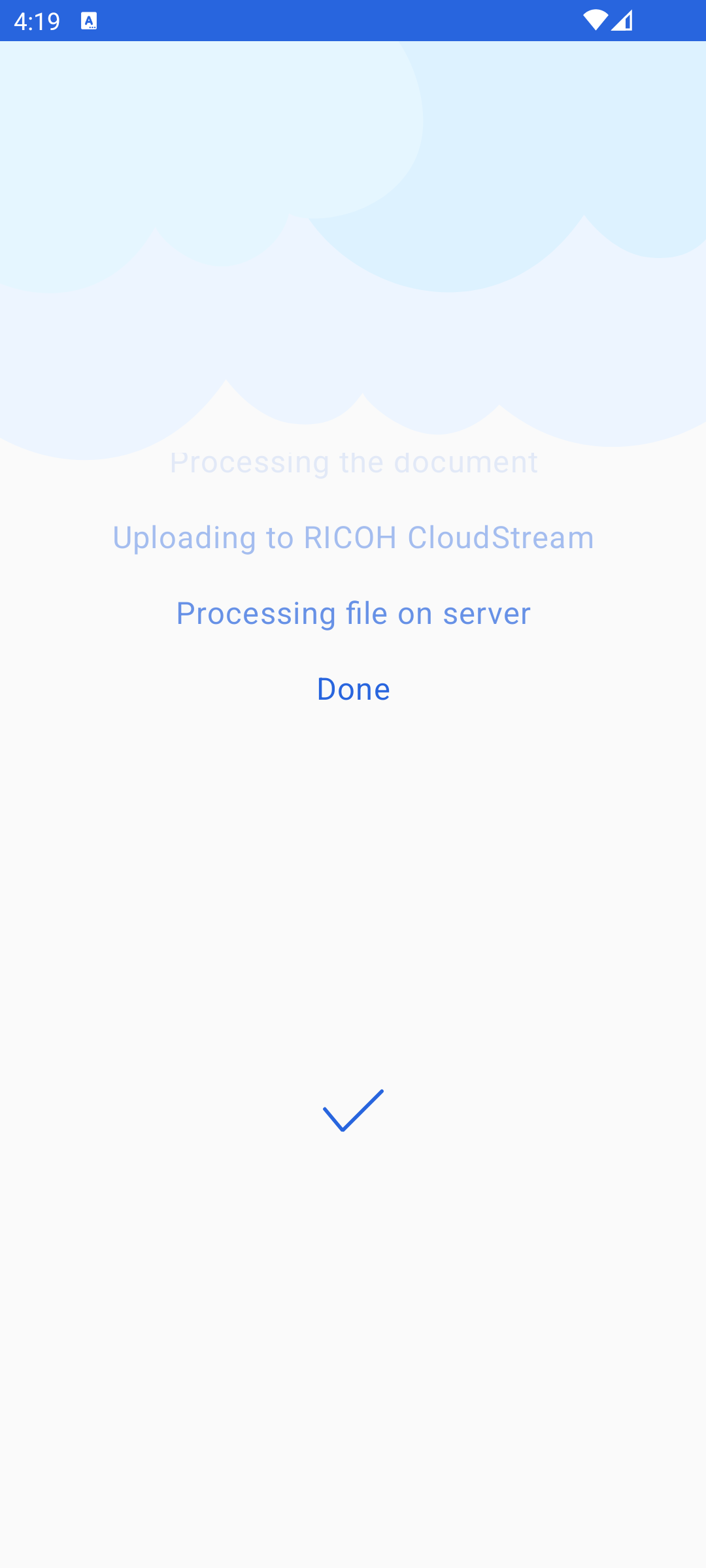
Note: Devices running Android 14 may not render the shadow in the file unlocking dialog.
Submitting print jobs directly from the app
-
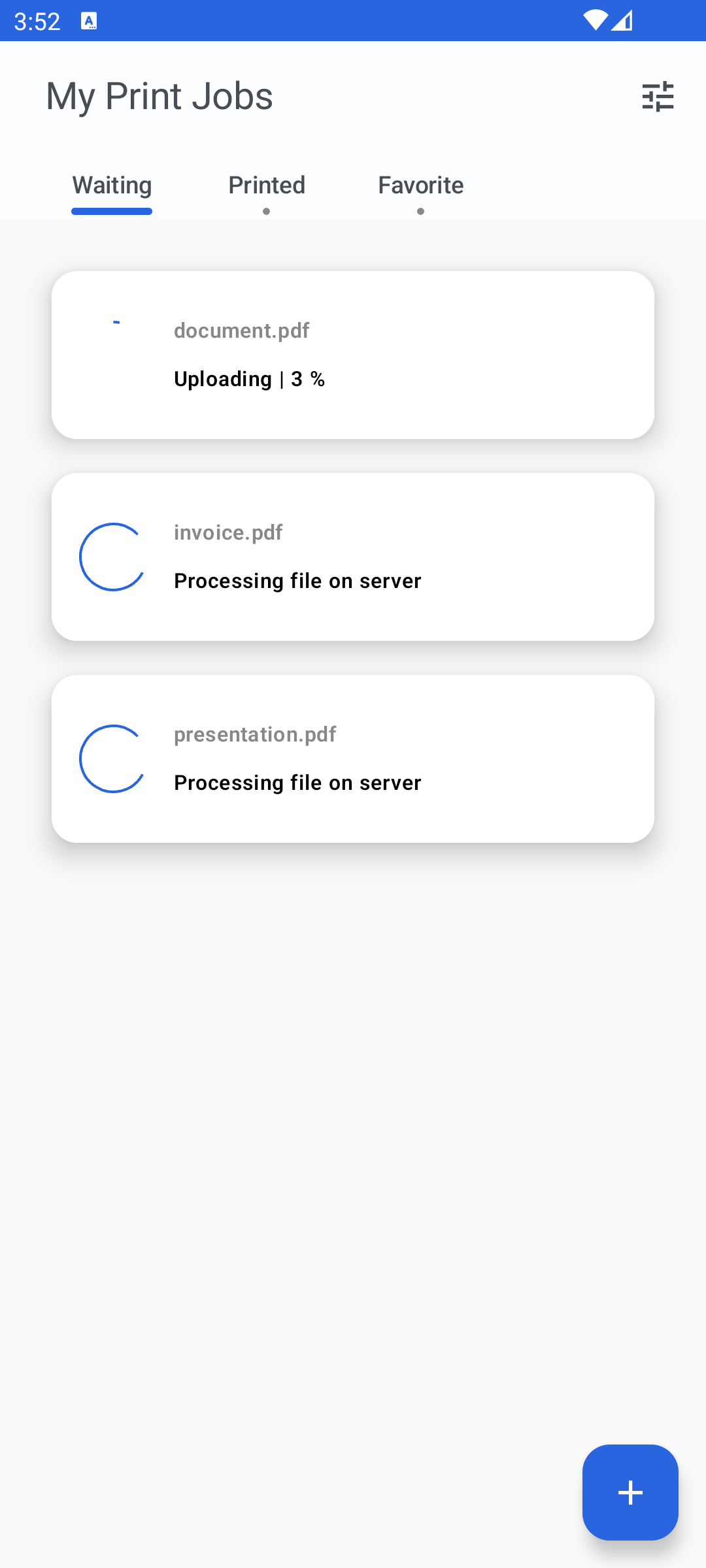
To submit a new document, tap the plus button at the bottom of the Job List screen. This will open the standard system file picker.
-
Select one or more files. If any of the chosen files are password-protected, a dialog will appear prompting you to enter the password. You will have the option to skip those files you do not wish to unlock.
-
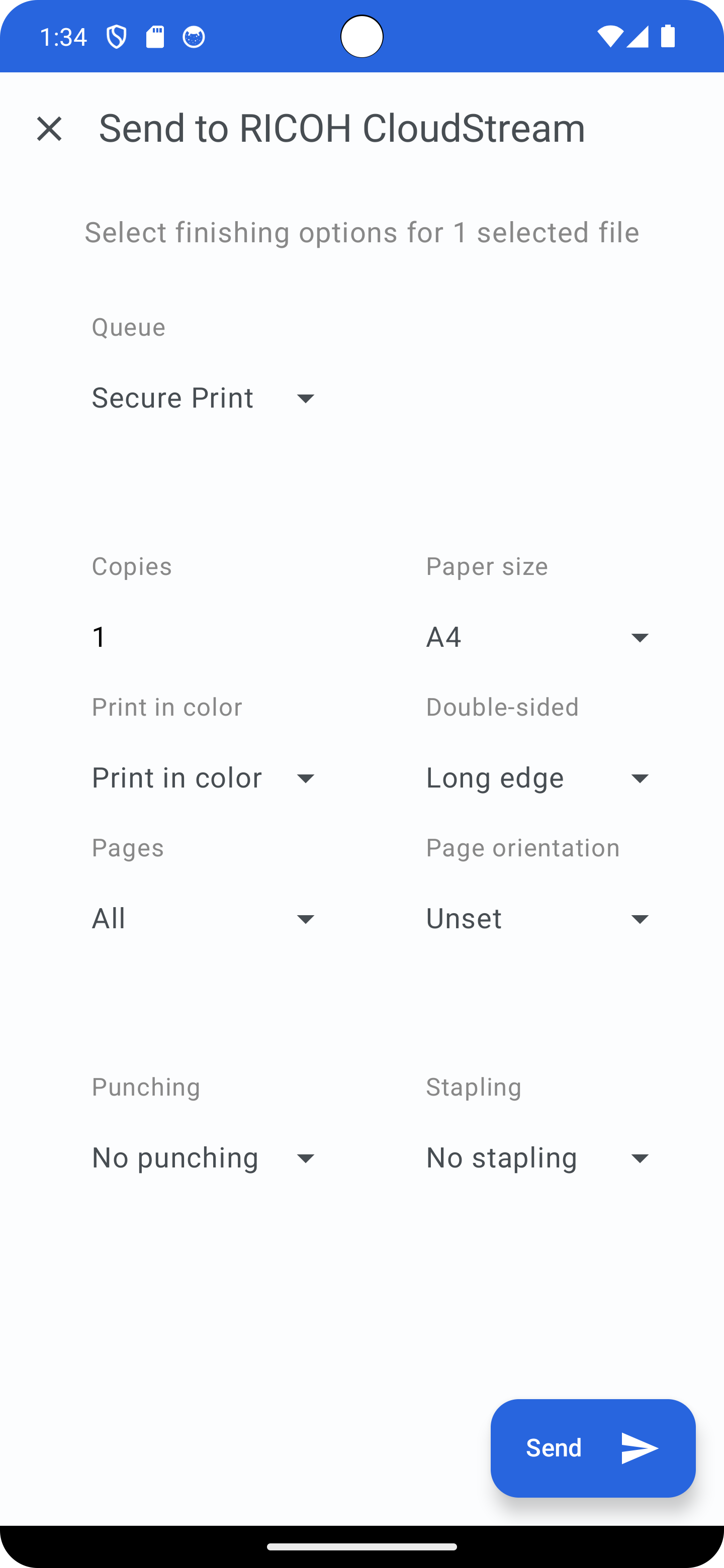
On the next screen, customize the finishing options (print queue, number of copies, color, page size, page orientation, and sides) according to your needs.
-
Tap Send.
Submitting jobs using the Android native print function
The PMC mobile app supports Native Print, allowing you to print directly from any Android app that supports printing (such as Chrome, PDF viewers, document editors, and more) to your PMC print queues. This feature integrates the PMC app with Android's built-in print system, making it easy to print from anywhere on your device.
First-Time Setup
-
Sign In: Make sure you are signed in to the PMC app. If you're not signed in, you'll see a "⚠️ Sign in to use" message when trying to print.
-
Add a Print Queue:
-
When you first try to print, if you have exactly one secure print queue available, it will be automatically added for you.
-
If you have multiple queues or no queues deployed, you'll need to select a print queue:
-
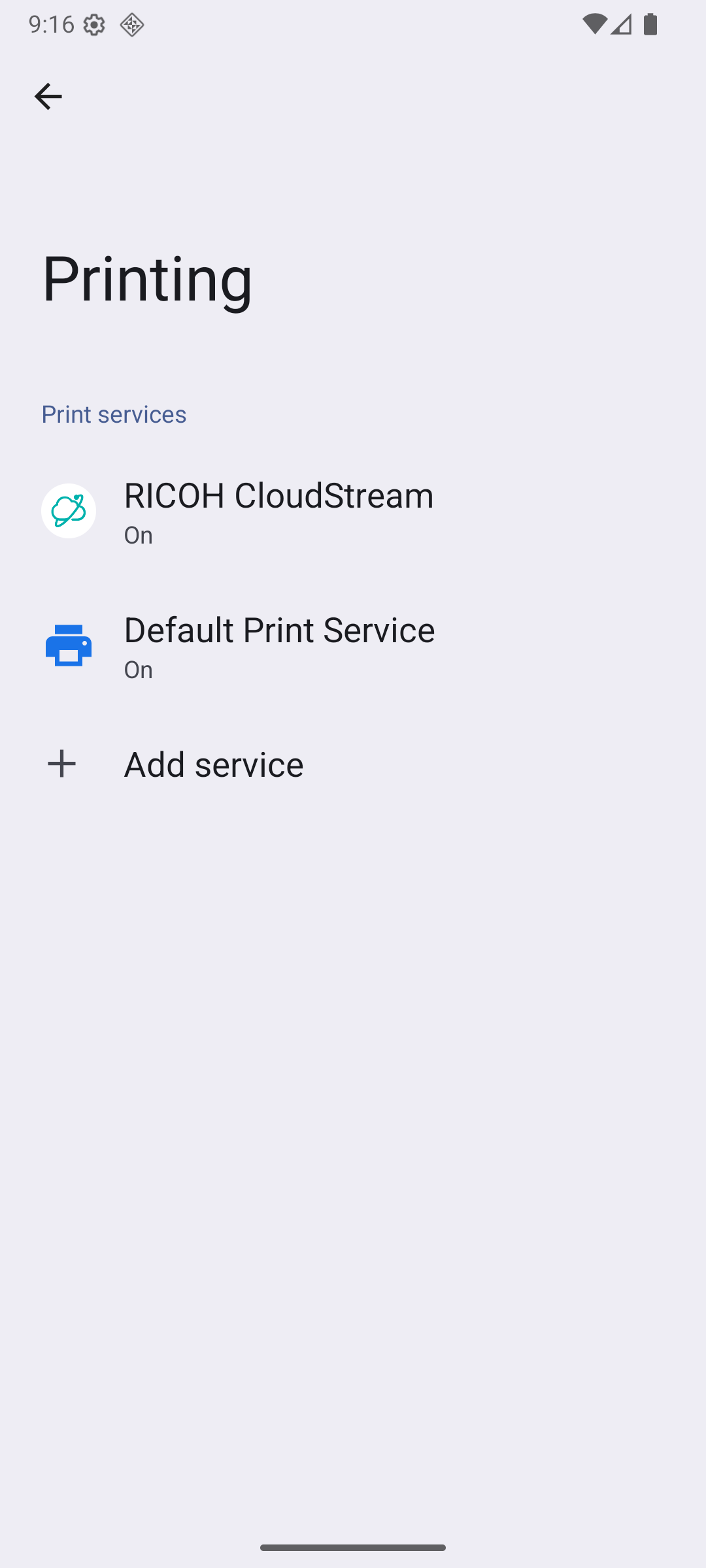
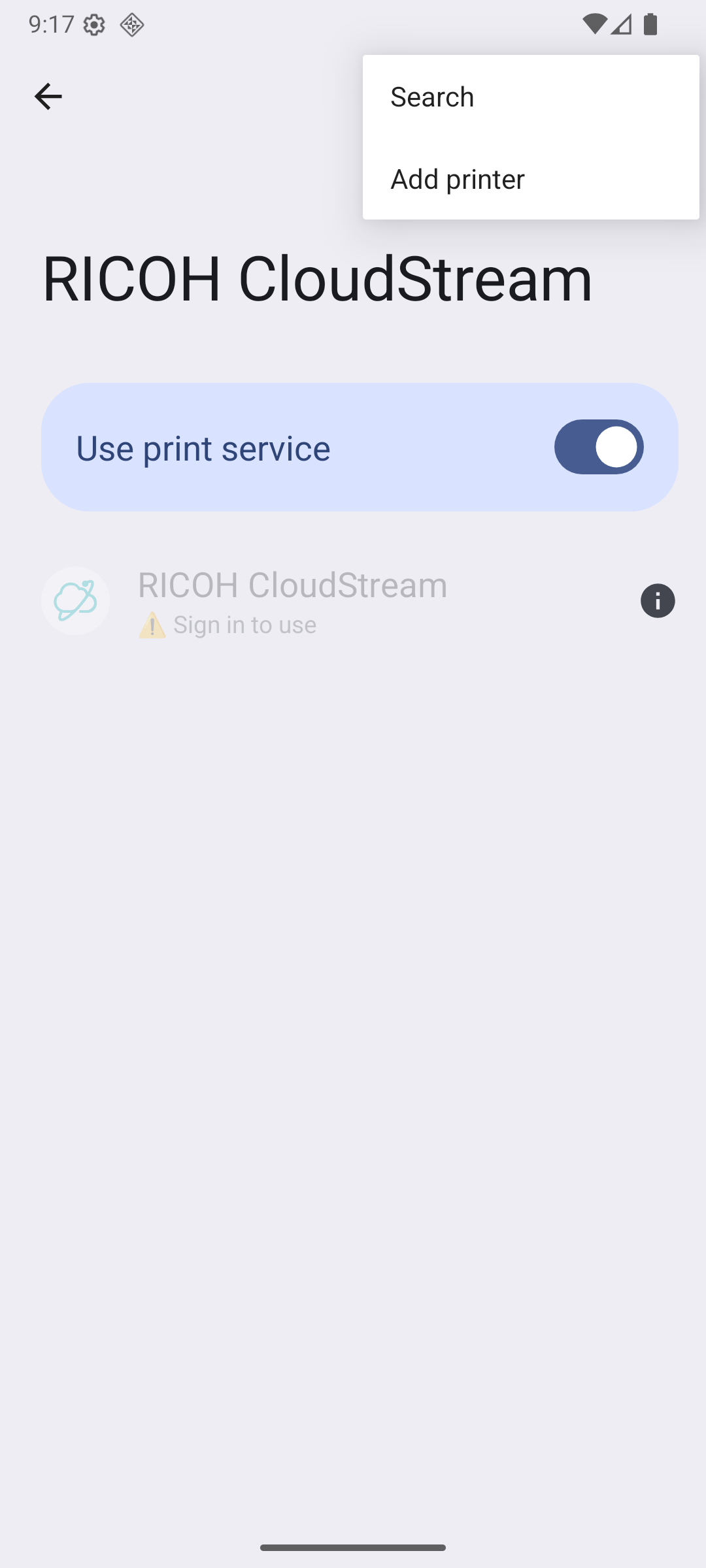
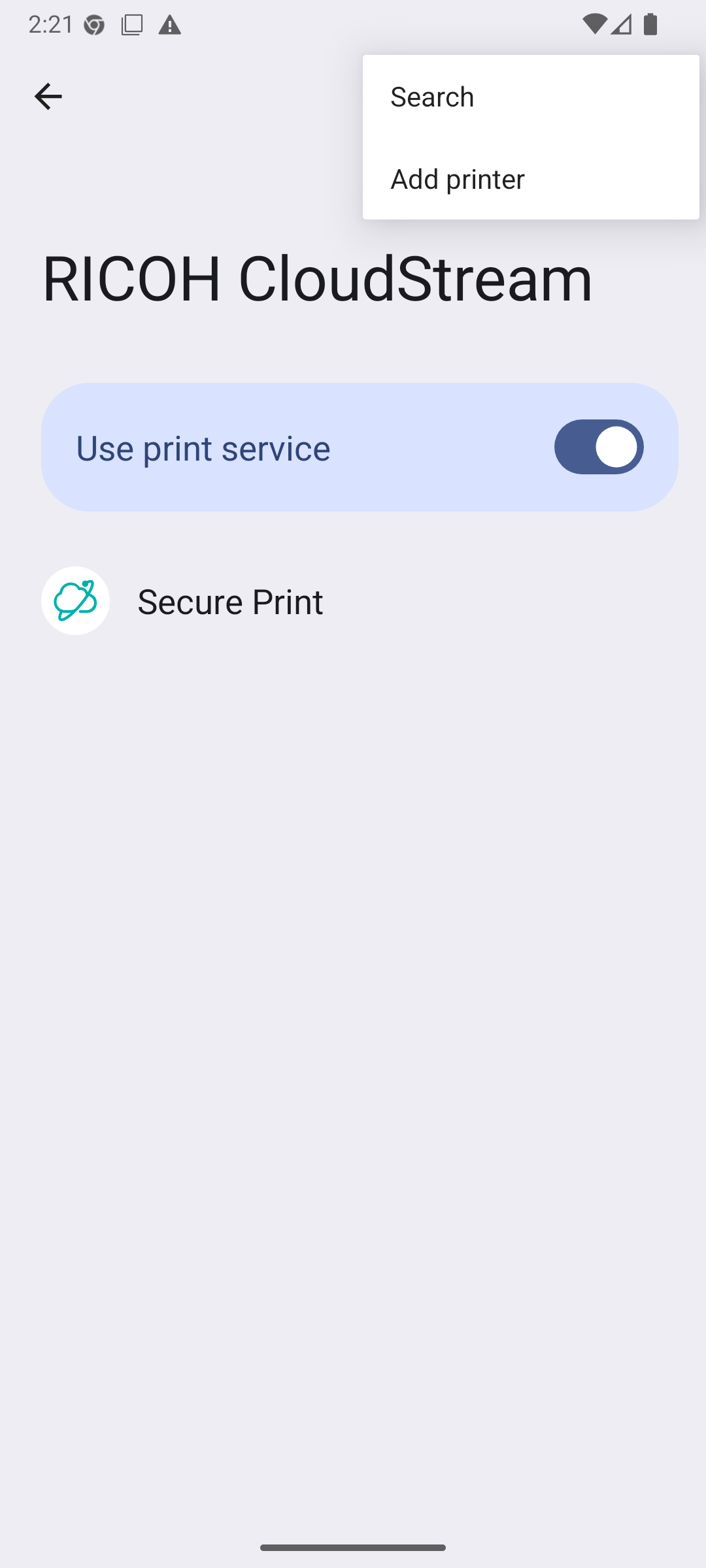
Open Android Settings → Connected devices → Connection preferences → Printing
-
Find the PMC print service
-
Tap on it and select "Add printer" (or tap the printer that shows "Select a print queue")
-
Choose the print queue you want to use
-
-
-
Verify Your Printer: After adding a print queue, it will appear as an available printer when you print from other apps.
Printing from Any App
-
Open the app you want to print from (e.g., Chrome, a PDF viewer, a document editor).
-
Open the print menu:
-
Tap the three-dot menu (⋮) → Print, or
-
Use the app's print option (usually in the Share or More menu)
-
-
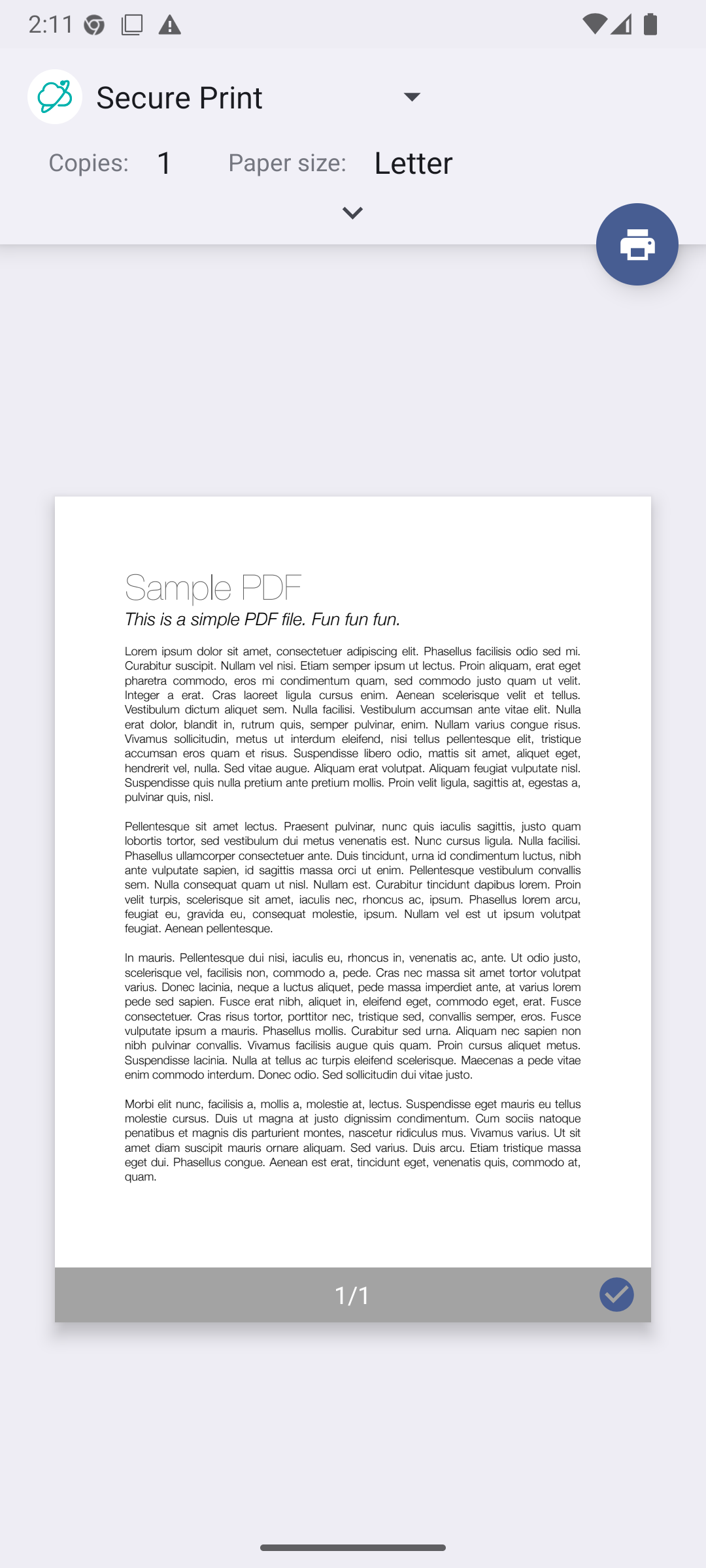
Select PMC Printer:
-
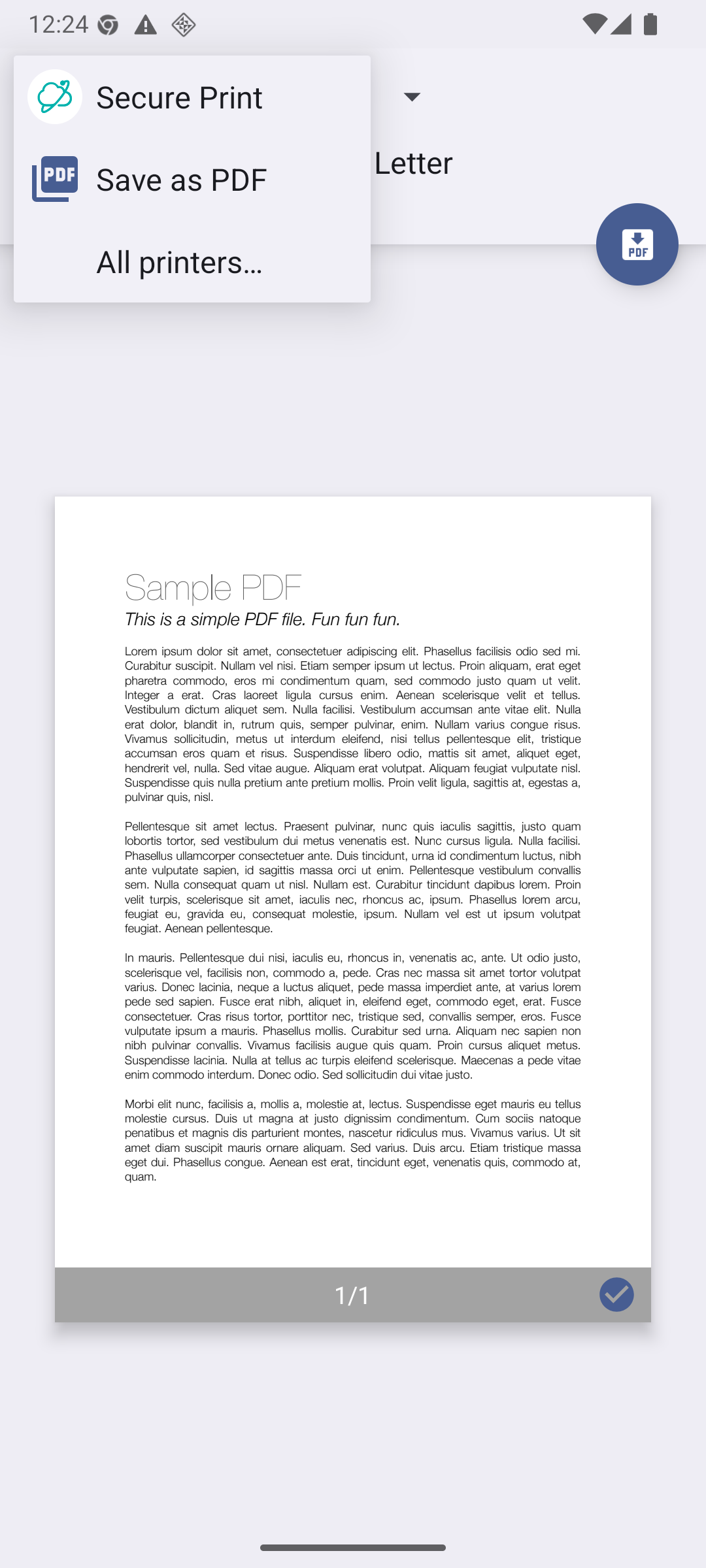
In the printer selection screen, look for printers named after your PMC print queues
-
Select the PMC printer you want to use
-
-
Print: Tap the Print button. Your document will be uploaded to PMC and processed according to your print settings.
Managing Print Queues
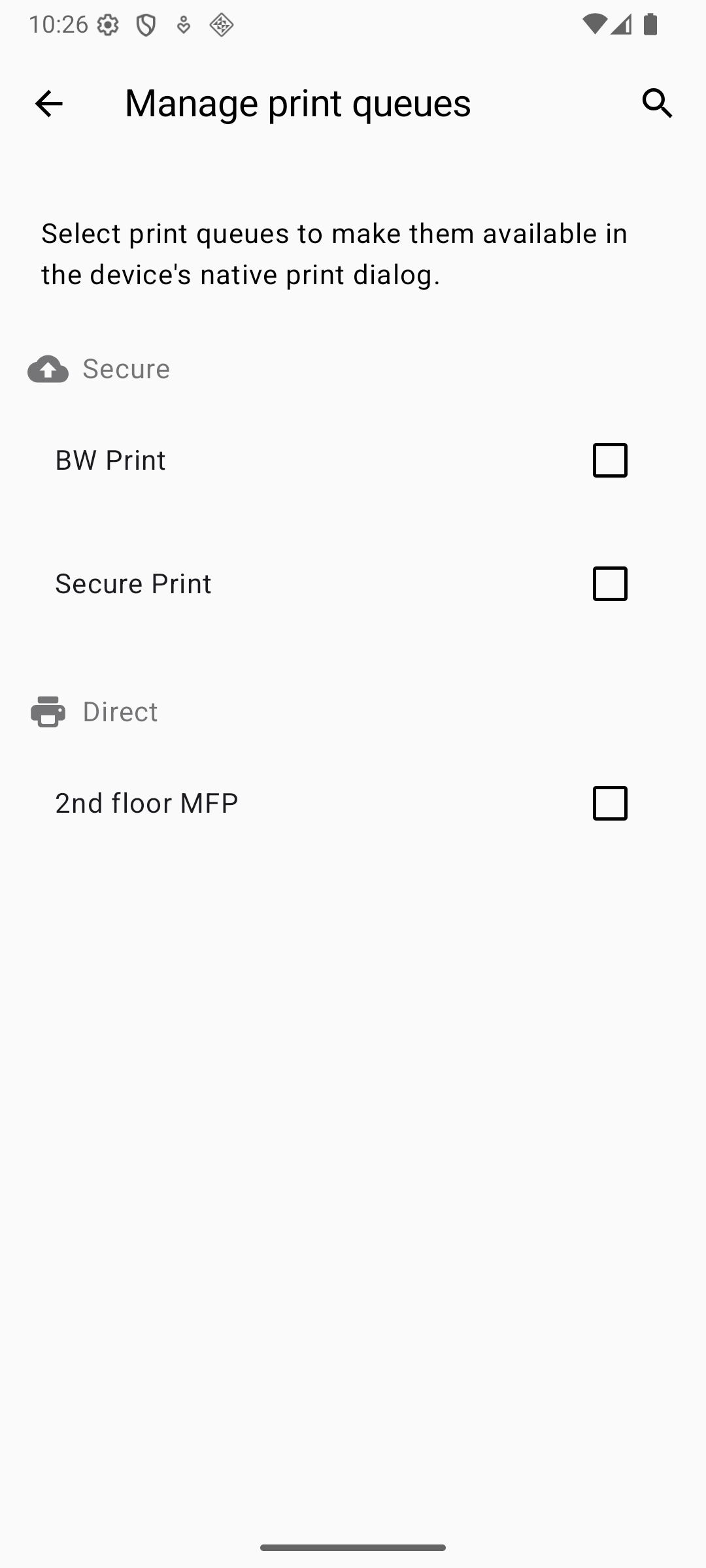
There are multiple way to manage which print queues will will appear in the native print dialog:
-
Open Android Settings → Connected devices → Connection preferences → Printing
-
Find and tap on the PMC print service
-
Tap "Add printer" (or the printer icon with a plus sign)
-
Select the print queue you want to add from the list
-
The new printer will appear in your printer list
You can also add more print queues directly from the print dialog. When selecting the printer you want to use, just tap “All printers…” in the drop-down menu and follow the same process from point 3 above.
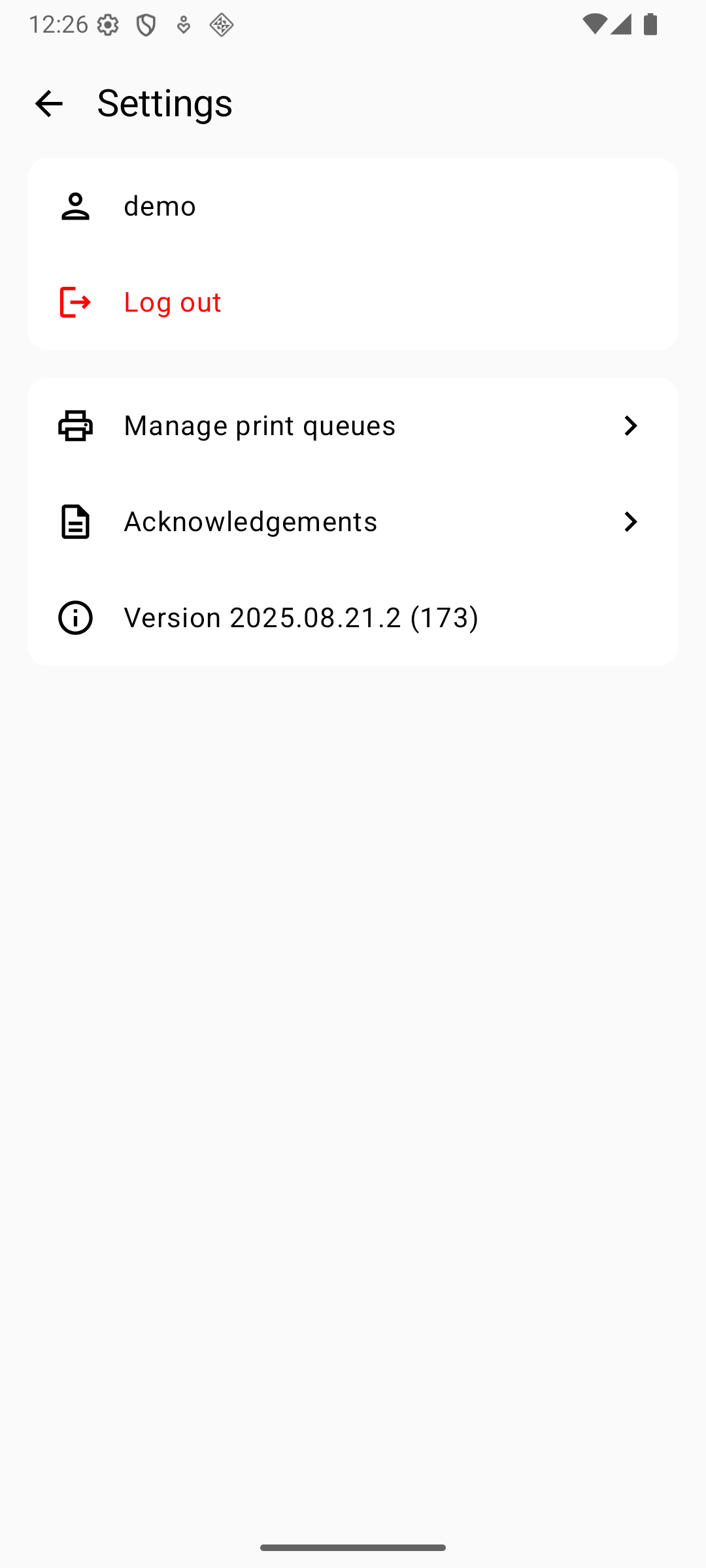
Or you can open the same screen from the settings screen in the application.
Deleting print jobs
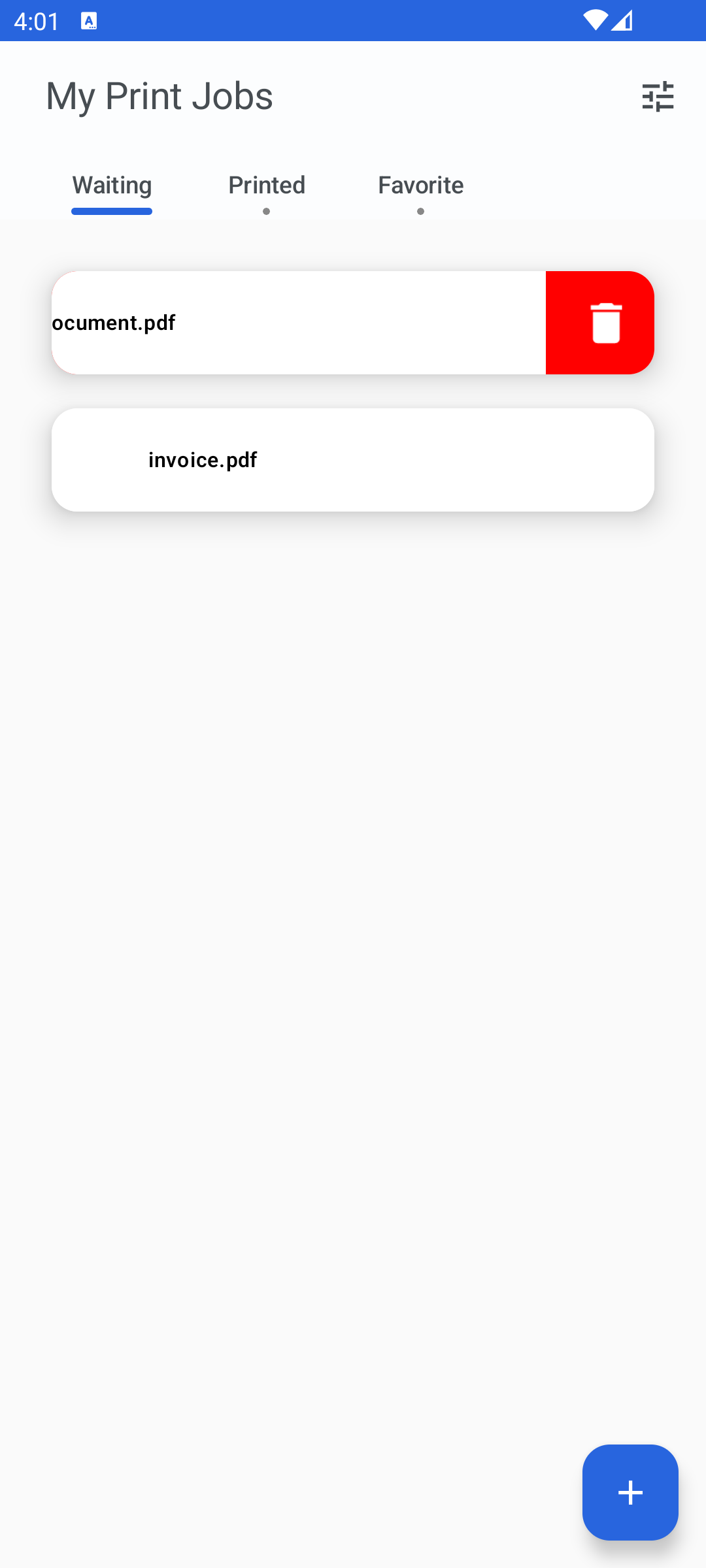
To delete a print job, swipe it to the left.
Job release with QR code
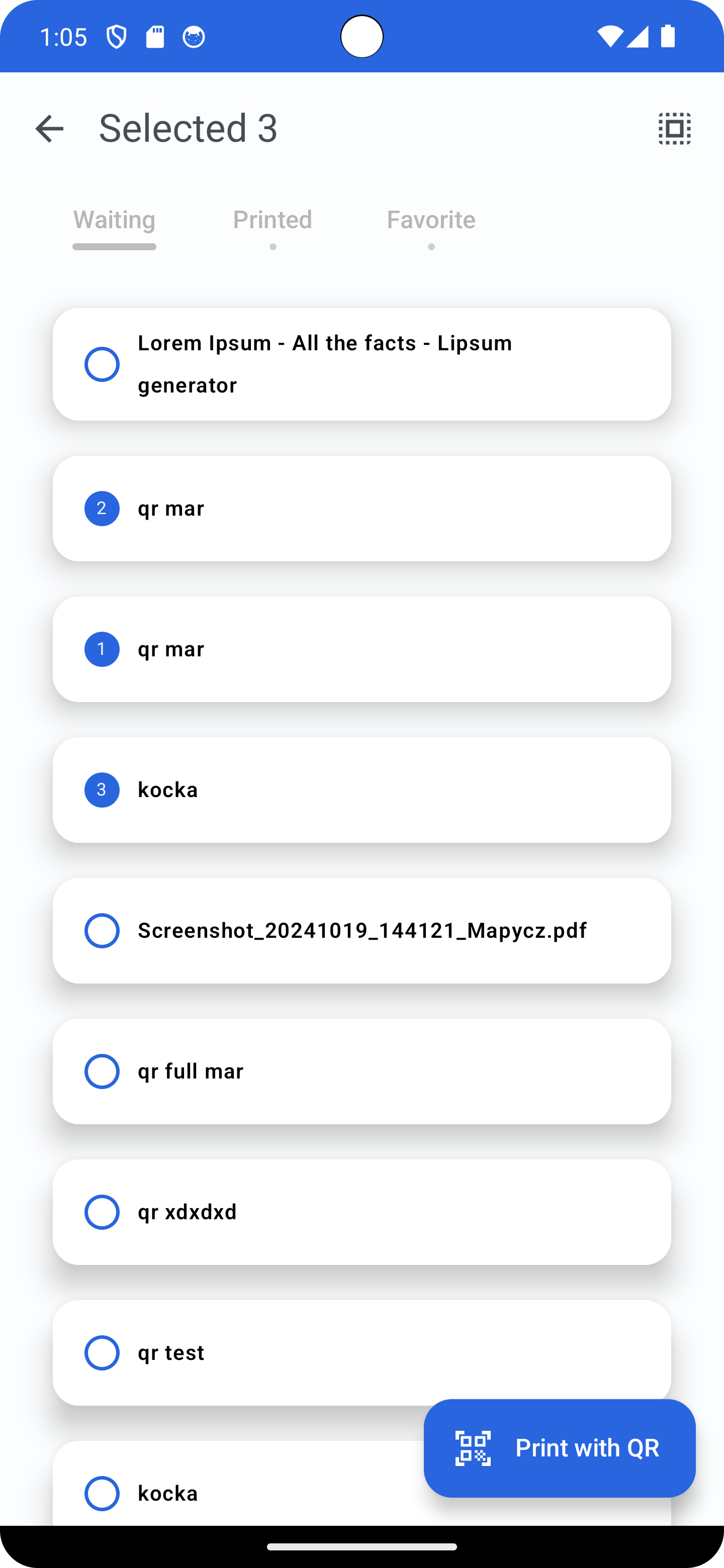
Users can select multiple files in a specific order. After tapping the Print with QR button, they can scan a QR code to release the jobs to the corresponding printer in the previously selected order. If any jobs cannot be printed, a popup will appear providing information about why they could not be processed.
Troubleshooting
While reporting any issues with the application the user has the option of collecting and sharing diagnostic information. Please do so via the ‘Share diagnostic information’ option on the Settings page.