
Setting up Balance
Before users can be charged, Balance has to be enabled for the customer account, administrators need the right permissions, and Balance has to be switched on with a price for each page.
Requirements
-
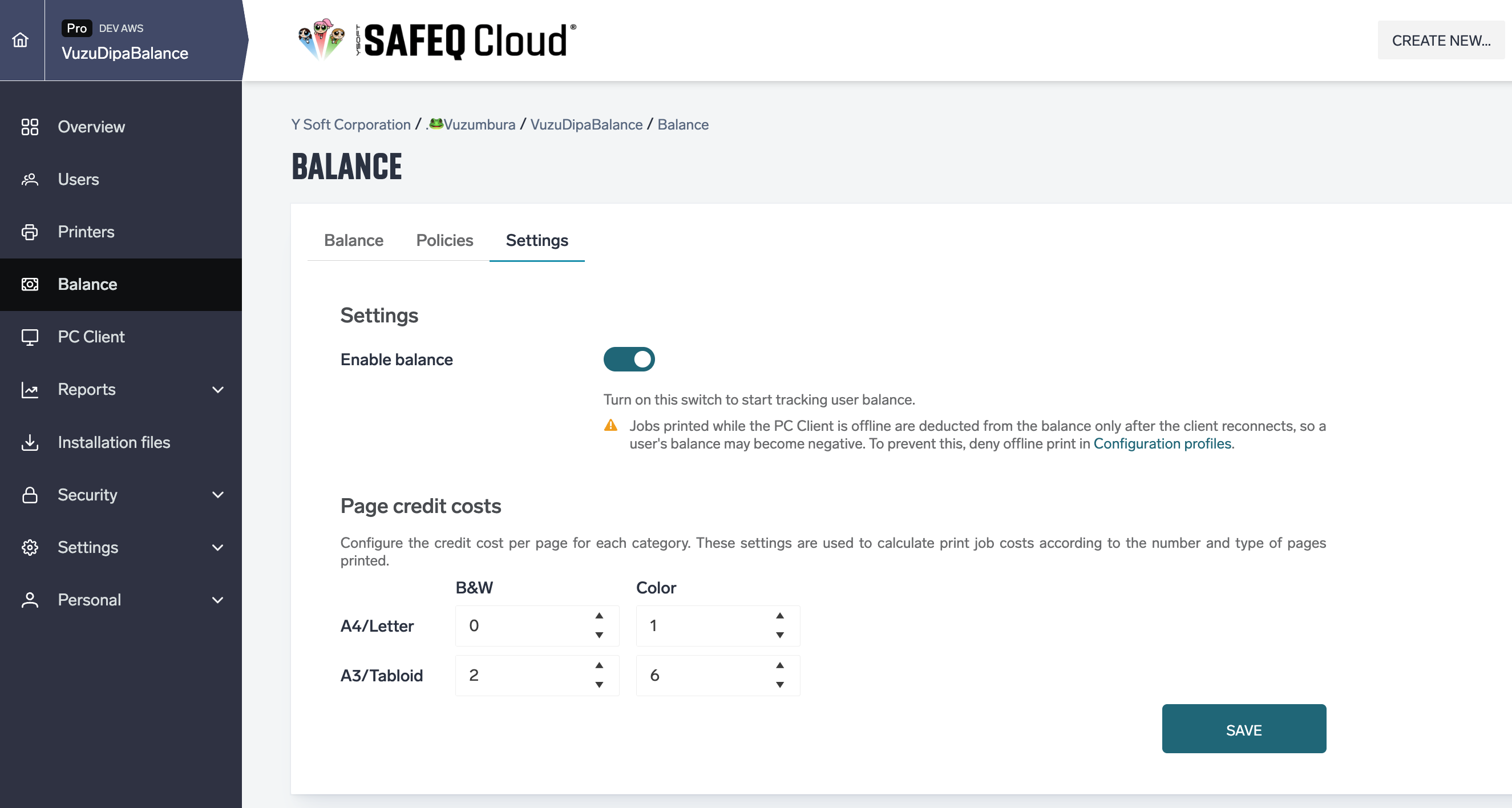
Balance must be switched on in Balance › Settings (Enable balance). While it is off, nothing is checked or charged.
-
To let users buy credit online, set up a payment gateway, see PayPal payment gateway.
Permissions
Balance appears in the left navigation with ViewUserBalance or ModifyBalanceSettings. What you can do there depends on these permissions:
|
Permission |
Allows |
|---|---|
|
ViewUserBalance |
The Balance tab: the list of users, their balances and transactions. |
|
ModifyUserBalance |
Top up and withdraw credits on the Balance tab, so it is used together with ViewUserBalance. |
|
ModifyBalanceSettings |
The Policies, Settings and Payment gateways tabs. |
The permissions can be combined as needed. For example:
-
Balance administrator: ModifyBalanceSettings. Sets up policies, prices and payment gateways, but does not see users' balances.
-
Cash desk: ViewUserBalance and ModifyUserBalance. Sees users' balances and tops them up or withdraws credits.
-
Cash desk, view only: ViewUserBalance. Sees users' balances and transactions, but cannot change them.
Settings tab
-
Enable balance turns balance on or off for the account. While it is off, no balance is checked or charged and new users get no initial balance.
-
Page credit costs — the credits charged per page for each category (B&W / Color × A4/Letter / A3/Tabloid). Shown only while balance is enabled.
-
Credit purchase — what a user gets when they buy credit (Purchase currency, Price of one credit, Smallest purchase, Largest purchase). See Pricing credits.
Click Save to apply the changes.
Next step: Balance policies — decide which users are charged and how.