
Beta feature The Konica Minolta MarketPlace integration is currently in beta. Possible issues or unexpected behaviour may occur.
Connect your MarketPlace account
Connecting is a two-part process: first you connect the MarketPlace account, then you approve access from your mailbox.
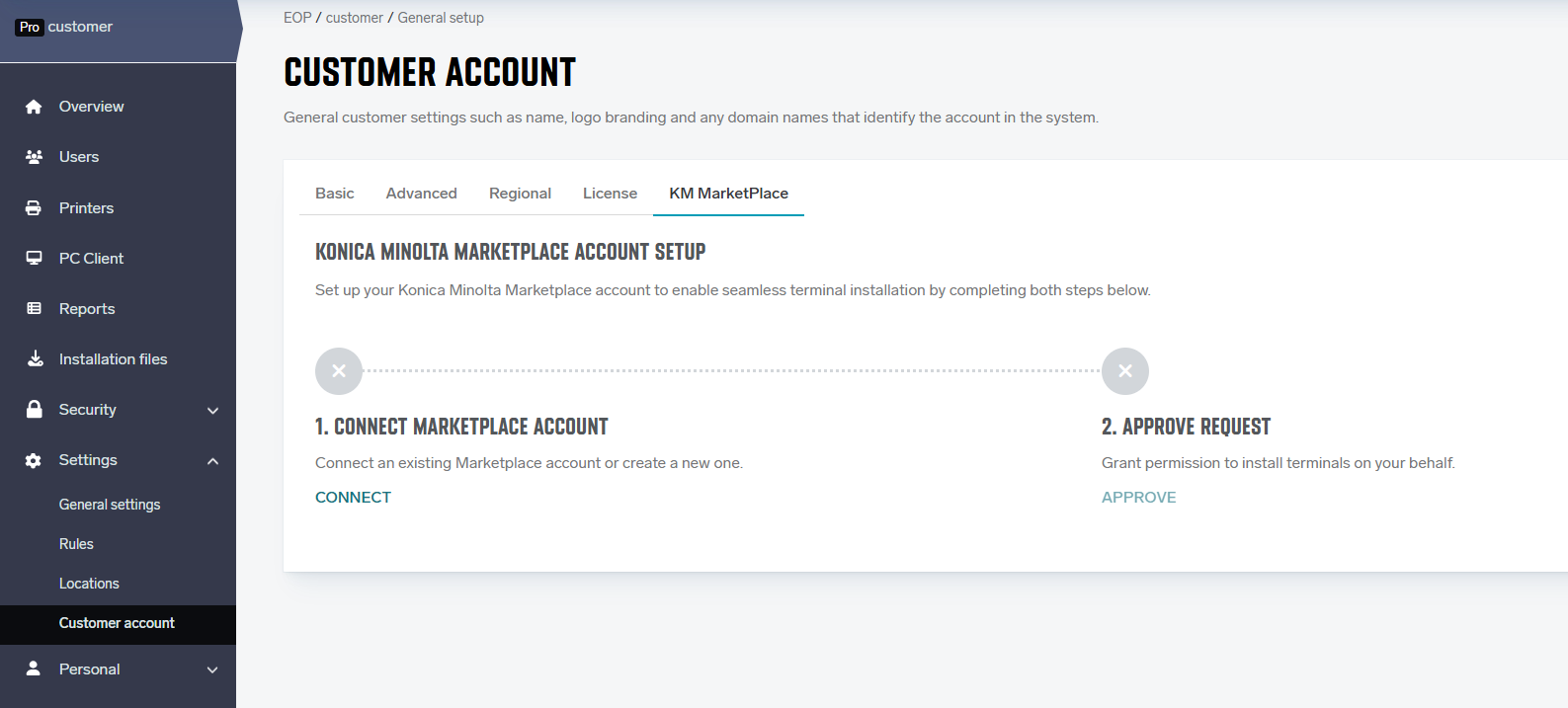
1. Start the connection
Open the KM MarketPlace settings and start the connection. The Connect KM MarketPlace account window opens.
Fill in the form:
-
MarketPlace account email – the email address associated with your Konica Minolta MarketPlace account.
-
Country – select the country where your company operates primarily (usually where your headquarters is located).
Selected country must match the MarketPlace region the device's MarketPlace app uses. For example, if the account is registered in the German MarketPlace but the device points to the British MarketPlace, the installation will not run.
If you already have a MarketPlace account for the region you want to use, select that region in the Country dropdown. Choosing a different country will prevent installation because MarketPlace accounts cannot roam between regions.
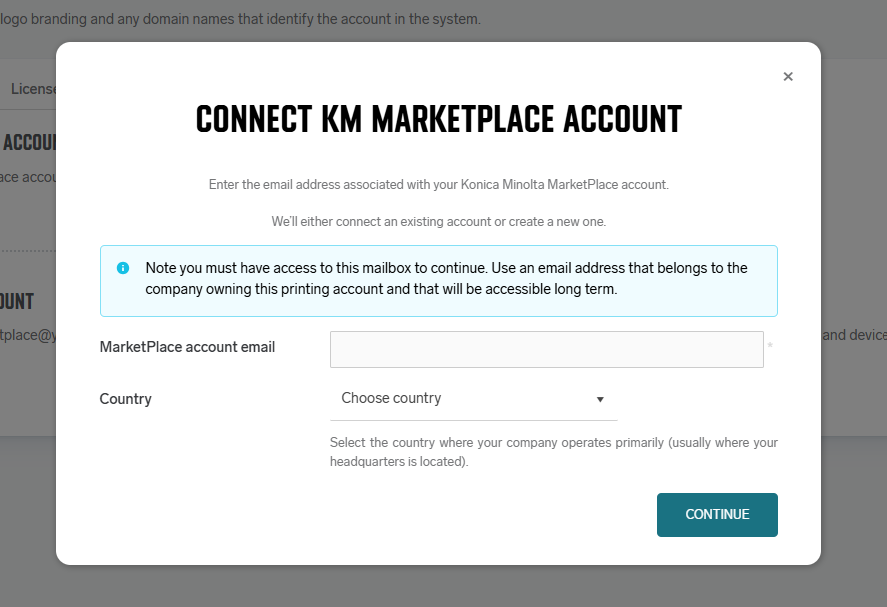
Click Continue.
One of two things happens:
-
A new account is created – if no MarketPlace account exists for this email, we create one for you. In your mailbox, you will find a registration email from Konica Minolta MarketPlace with the activation link.
-
An existing account is found – if a MarketPlace account already exists for this email, we ask you to confirm it. You'll see "We've found MarketPlace account under email: … Do you want to continue with this account and connect it?". Click Connect and continue (or Change email to use a different address).
2. Approve access via email
After connecting, you need to approve access so we can manage applications and devices for you.
The Approve access via email:
-
In your mailbox, you'll receive an approval email from Konica Minolta MarketPlace.
-
Open the email and click Approve Request to continue.
3. Setup completed
Once approved, setup is complete. You can now install terminals on your printers.
How to install terminals via KM MarketPlace integration. (link)
Troubleshooting
-
Currently the connection to Konica Minolta MarketPlace is unavailable. – Try again later or contact your administrator.
-
The selected country does not match the Konica Minolta MarketPlace region – Choose a country that matches your MarketPlace region or create a new MarketPlace account in the region.
-
Didn't receive the approval email – Check your spam folder or use Resend email.
-
Installation did not start — ensure the country selected at connection start matches the region the MarketPlace app on the device uses. If they mismatch, installation will fail. To fix this, reinstall the MarketPlace app on the device with the correct region selected.
Limitations
-
Linking multiple MarketPlace accounts is not supported – Global companies must use a single MarketPlace account tied to one region (usually the company HQ). Because of this, all devices worldwide must connect to the MarketPlace for that region. Also, MarketPlace application on device on first start connects to the nearest MarketPlace based on printer location, so you must reinstall MarketPlace with the correct region to make Konica Minolta IWS Simplified Deployment work.