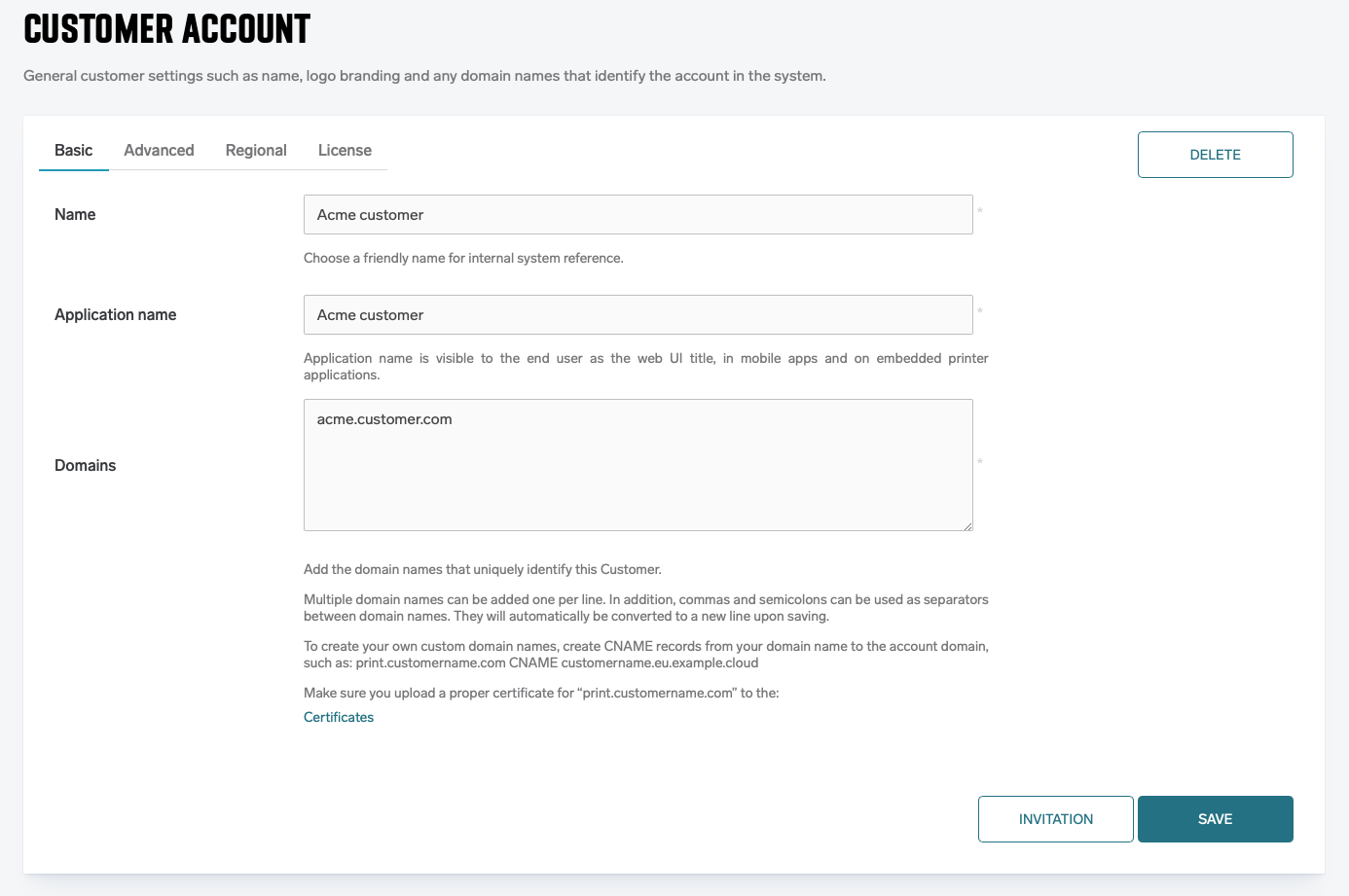
Each Vendor primary account, Customer primary account, or standard Account in the RICOH PMC system tree has a Settings > Vendor account or Customer account menu item. It holds the general settings for the entity in the system, such as Name, logo branding, and any domain names that identify their system in the PMC.
Adding Vendor accounts and Customer accounts
-
Select a parent node within the PMC system tree.
-
If you wish to add a Vendor account, click Create new and select Vendor.
-
If you wish to add a Customer account, click Create new and select Customer.
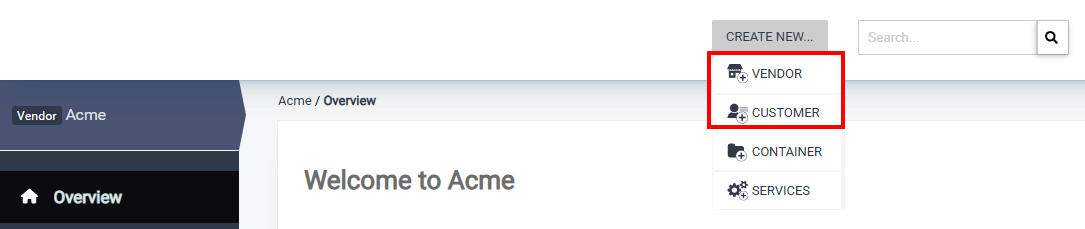
Vendor accounts and Customer accounts can only be added to Primary nodes or Vendor nodes, not to Customer account nodes.
General setup
Configure the Vendor account or Customer account settings. Most options are the same for both types of accounts.
Basic
-
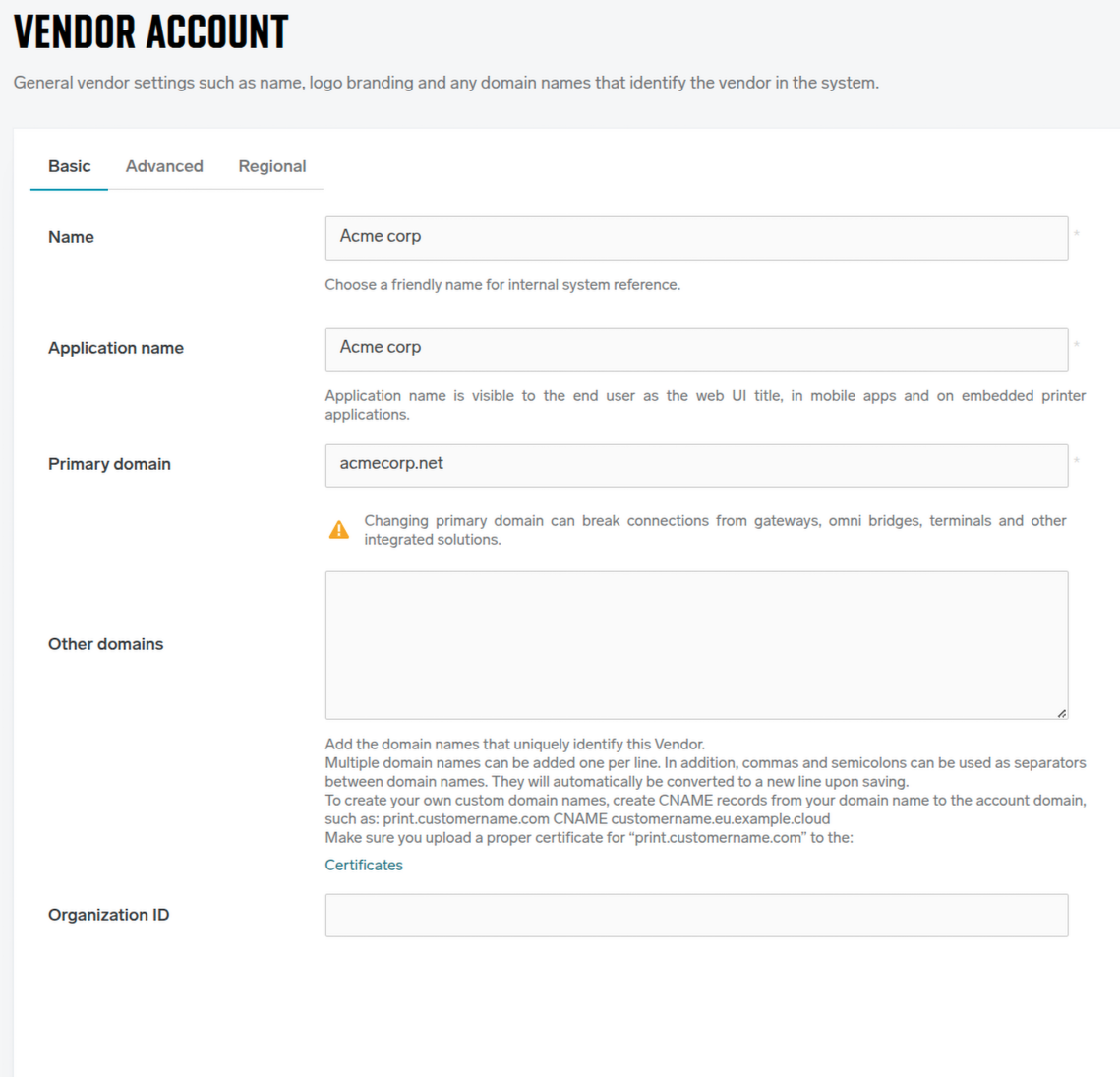
Name – Enter a user-friendly name of the Vendor or Customer within the PMC system.
-
Application Name – The application name is automatically copied from the Name field when creating the account but you can modify it. Note that the Application name is primarily for display purposes.
-
Primary domain – The main domain name that uniquely identifies this Vendor or Customer; it is used to identify the account across the system (mandatory). When creating the account, the primary domain is automatically derived from the Name field and converted to a valid domain-name format. If any parent Vendor account has Default domain for new accounts set, that value from the closest Vendor is appended as a suffix (e.g. the inherited ".eu.example.cloud" above). Changing the primary domain later can affect connections from gateways, OMNI Bridges, terminals and other integrated solutions.
-
Other domains – Additional domain names by which this Vendor or Customer can be reached (optional). Add one per line; commas and semicolons are also accepted as separators and are converted to new lines on save. The primary domain is not repeated here.
Advanced
-
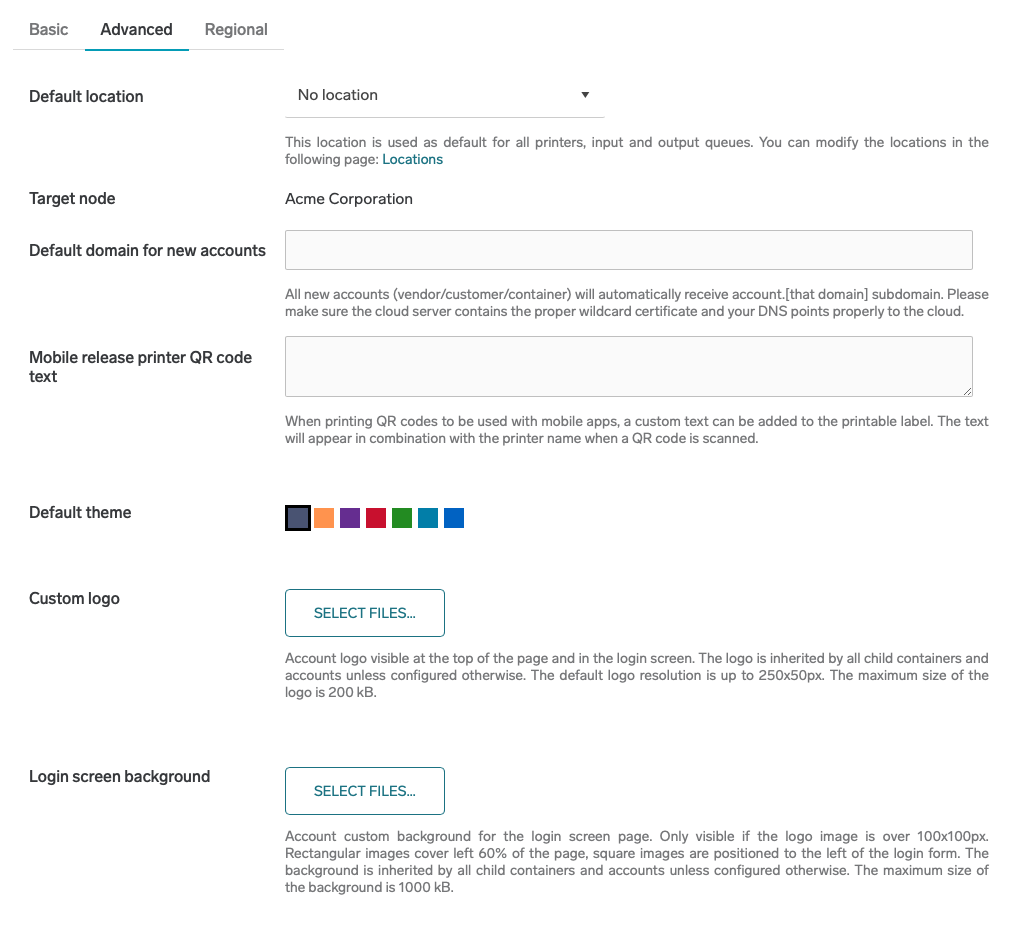
Default location – This value indicates the Vendor or Customer location. If no location is set on the Vendor or Customer, the no data value will automatically be assigned to the Location parameter.
-
Default duplex mode – Duplex mode for default Configuration profile. Note: This setting serves only for creating default profile during customer creation and will not be visible once customer has been created.
-
Default color mode – Color mode for default Configuration profile. Note: This setting serves only for creating default profile during customer creation and will not be visible once customer has been created.
-
Target Node – This read-only value displays the parent node where the Vendor or Customer will be placed.
-
Default domain for new accounts – Available only for Vendor accounts. The subdomain that all new Vendor or Customer accounts created under this new Vendor account will receive. The format is <account>.<Default domain for new accounts>. Make sure that the cloud server contains a correct wildcard certificate and that your DNS points correctly to the cloud.
-
Mobile release printer QR code text – The text displayed under QR codes used to release print jobs via the Mobile application
-
Policy for unknown location – This policy determines which print queues are available to the PMC Client if it does not belong to any known location.
-
Default theme – Allows you to change the visual style of the PMC Web UI.
-
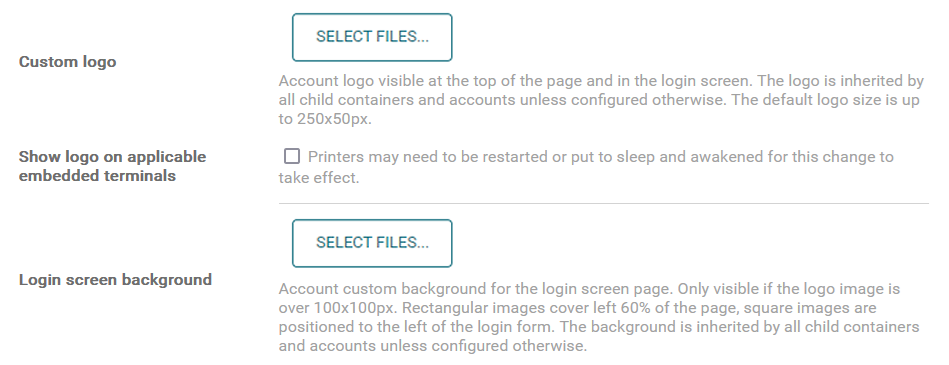
Custom logo – Upload a logo image file that is displayed in the upper left corner of the PMC Web UI and on the login screen for this vendor/customer account. The maximum size of the logo is 200 kB. Supported file formats are PNG and JPEG (.png, .jpg, .jpeg).
-
Login screen background – Upload an image file that is displayed on the login screen of the PMC Web UI. The maximum size of the background is 1000 kB. Supported file formats are PNG and JPEG (.png, .jpg, .jpeg).
-
Customer reference number - Available only for Customer accounts. Allows to save any kind of ID as the reference from the external systems.
Some options are specific only for customer accounts:
-
Show logo on applicable embedded terminals – Check the checkbox so the image uploaded in Custom logo appears also in the upper left corner of an installed Embedded Terminal.
Regional
-
Default language – The default language of the account.
-
Default paper size – The default paper size of the account.
-
Timezone - The default timezone of the account.
-
Report settings - Available only for Customer accounts.
-
Price per page - Set your price per page to display cost data in reports. Different price can be set for small/large page and color/B&W page.
-
Currency - Currency in which prices are entered can be set.
-
Percentage of recycled paper used for printing - can be set for calculation of environmental savings report.
-
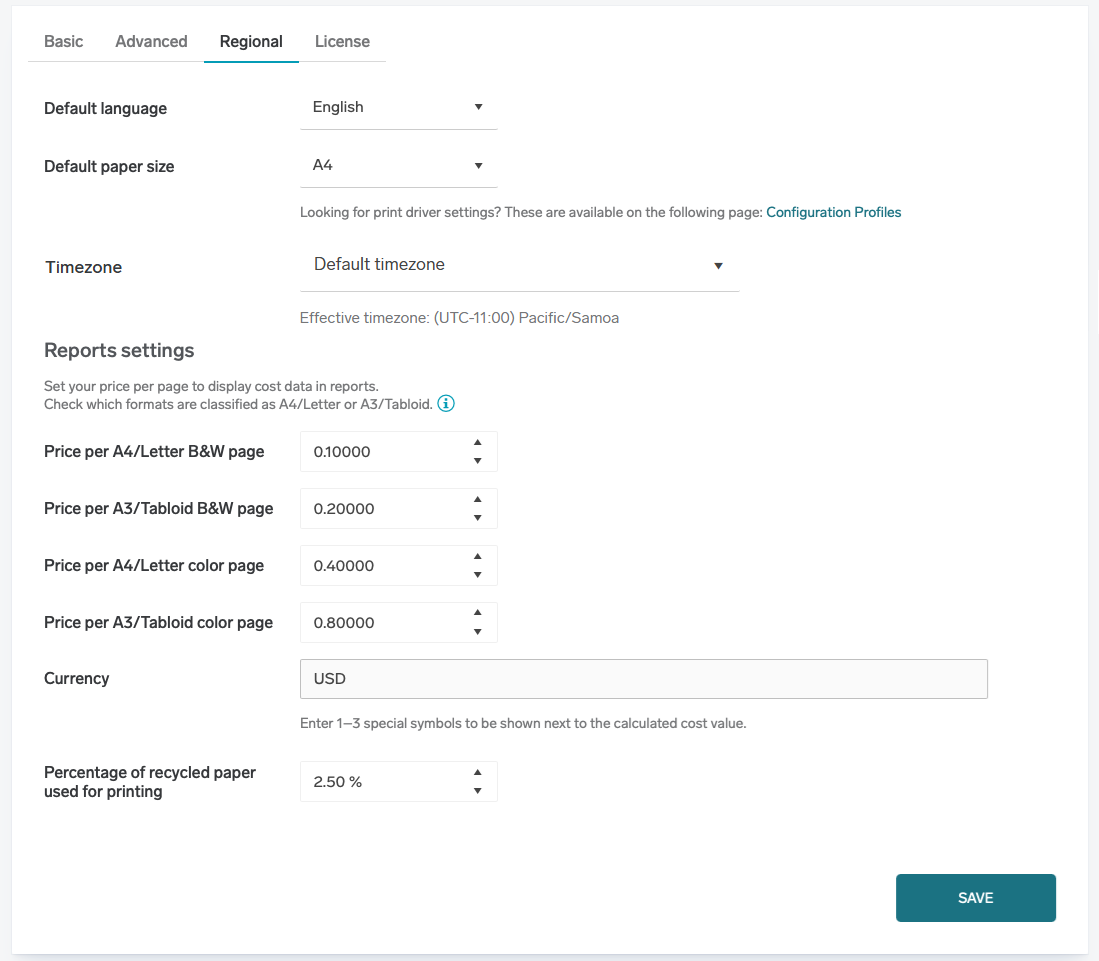
Click SAVE to create the Vendor or Customer entity within the PMC system.
Editing the settings
Select the appropriate node in the PMC system tree. This will open the navigation sub-menu. In the sub-menu, click Customer account.