
Limitations:
-
Terminal management is supported only for FUJIFILM BI Terminal, Ricoh Standard Gen 2 Cloud Terminal, Xerox Gen 2 Cloud Terminal, Canon Gen 2 Cloud Terminal and the Sharp Gen 2 Cloud Terminal.
-
For the FUJIFILM BI Cloud Terminal, the installation only works in MS Windows.
-
The Cloud Client in version 2026.03.19 or later must be installed on your PC
-
Konica Minolta IWS Simplified Deployment does not support develop machines
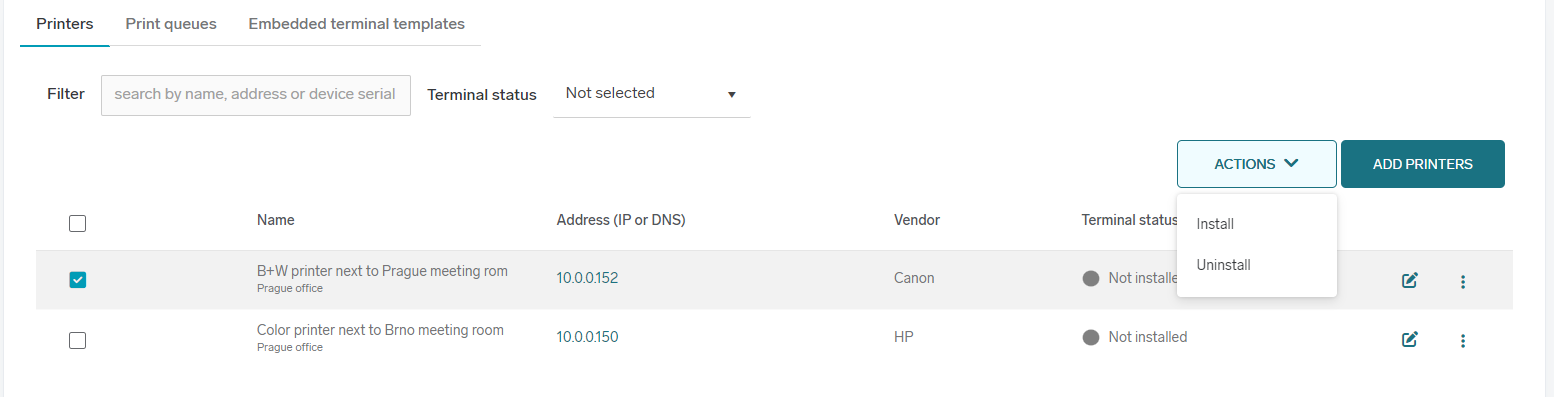
Administrators can automatically install Cloud terminals on supported MFDs. In order to do so navigate to the Printers page, select printers you want to manage, click the “Actions” button and select from Install or Uninstall. Cloud terminall installation can be also trigerred when adding new printer, using ADD AND INSTALL TERMINAL button.
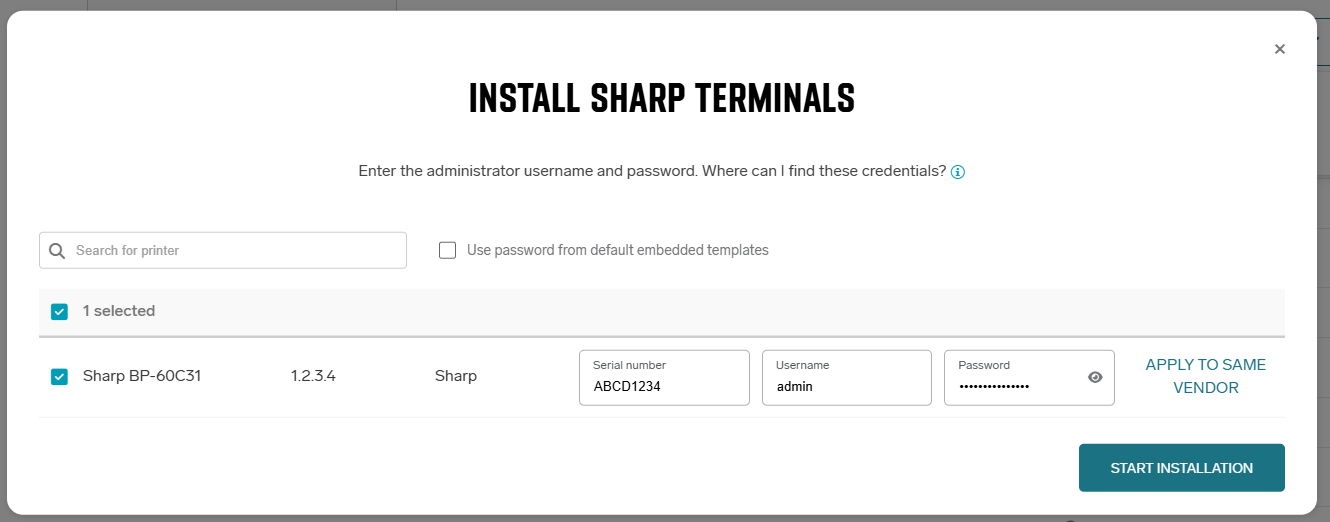
A new window will open, displaying available printers. Select the printers on which you want to install the terminal. Provide MFD administrator credentials, which are required to proceed with the installation or uninstallation.
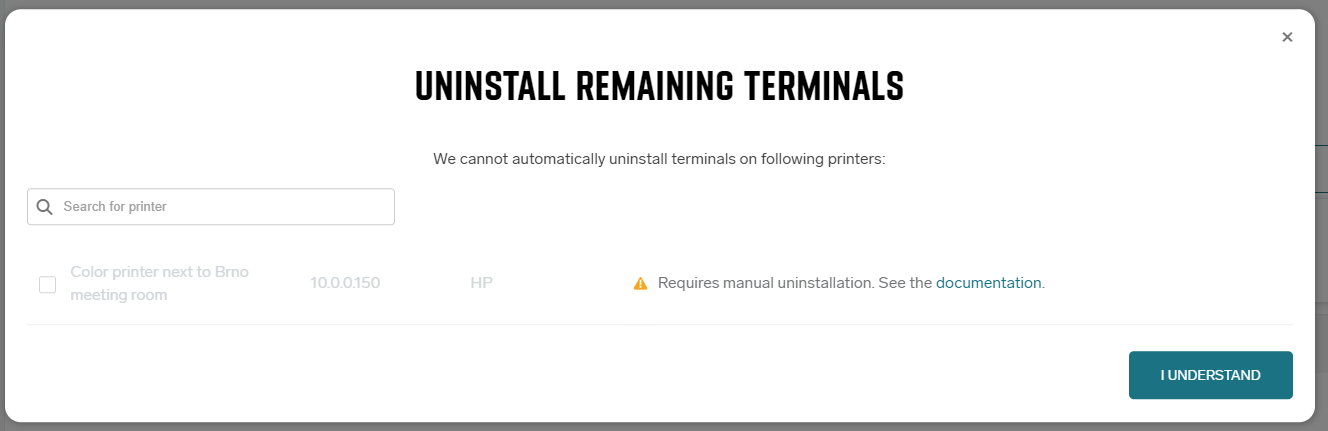
Some printers may not be able to be installed or uninstalled, in which case the reason is displayed next to the printer.
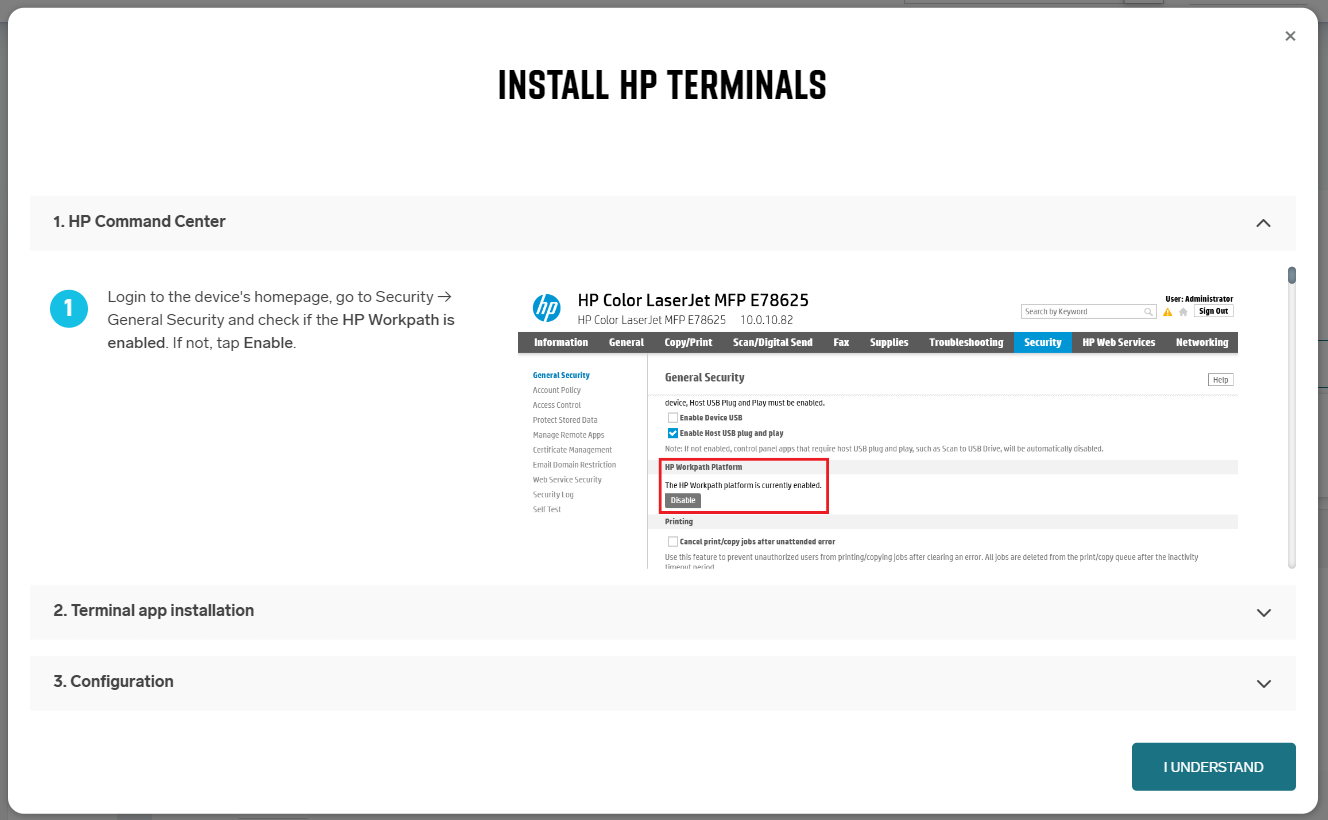
For some type of vendors, manual installation guide might be shown.
After clicking “Start installation” or “Start uninstallation” the Cloud Client downloads the Deployment Tool on your machine and starts the installation process. During this phase, the tab must remain open.
Once the Deployment Tool is ready the installation of terminals begins. At this point, you may close the window; the installation will continue in the background.
Some terminals may require additional post-installation steps to function correctly. Refer to the specific documentation for each terminal type.
Installation of KM IWS Gen2 Cloud Terminal
Beta feature The Konica Minolta MarketPlace integration is currently in public beta. Possible issues or unexpected behaviour may occur.
Cloud terminal installation for KM devices can be fully automated via the integration with KM MarketPlace. The prerequisite is to have your KM MarketPlace account linked to your PMC account. (see how to link accounts)
Requirements
-
Printer with the KM MarketPlace application version 5.7.27 or newer installed
-
Printer with firmware supporting IWS version 2.5.6 or newer
-
MarketPlace app on the device is set against MarketPlace server in the region chosen when linking the MarketPlace account
Installation with a linked KM MarketPlace account
If the selected printer already has our terminal application from a source other than MarketPlace, remove it manually before proceeding; otherwise it will cause problems.
If our application is already installed using MarketPlace, you can proceed.
-
Select the printers you want to install a terminal on.
-
Click on Actions button and click Install.
-
For each selected printer, provide Serial number and MFD’s Password.
-
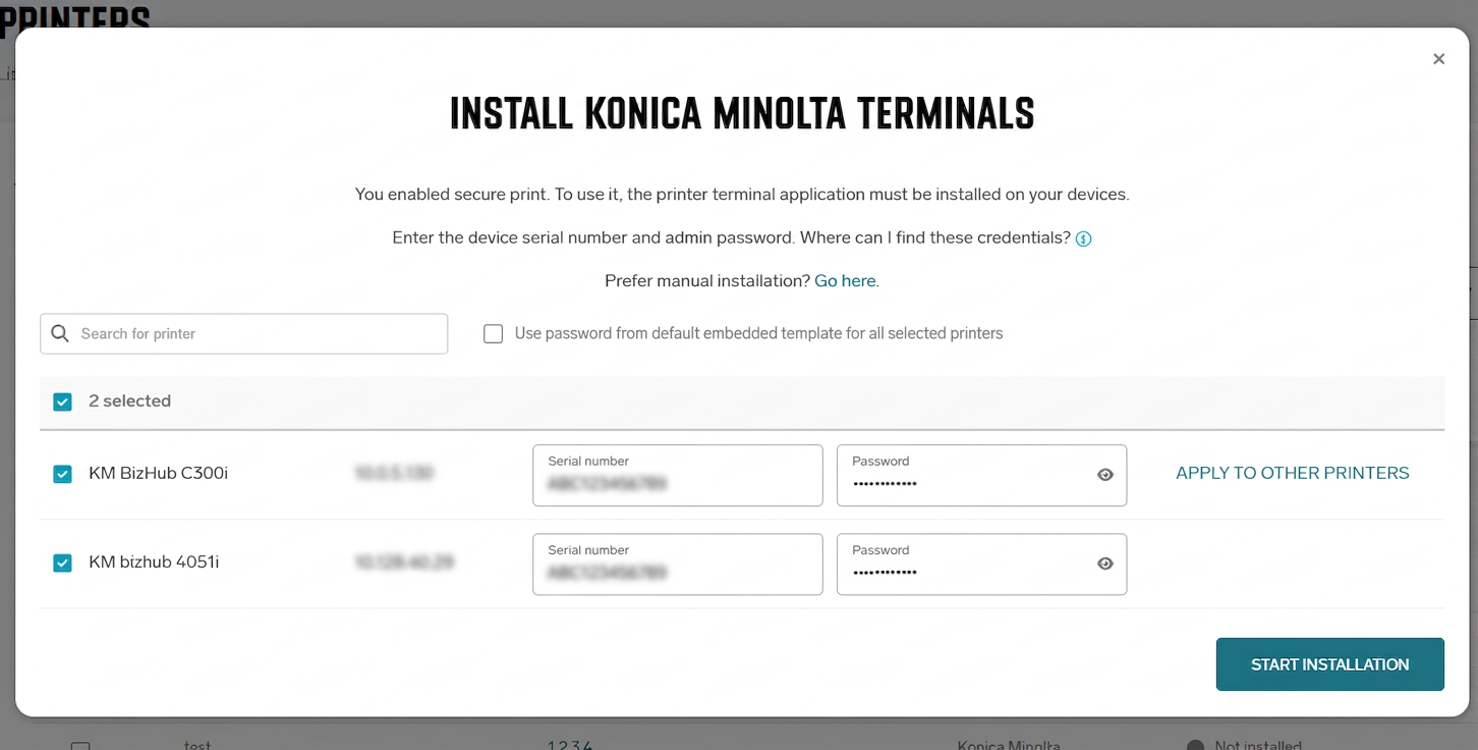
Once all selected printers have valid credentials, start the installation by clicking on START INSTALLATION button.
-
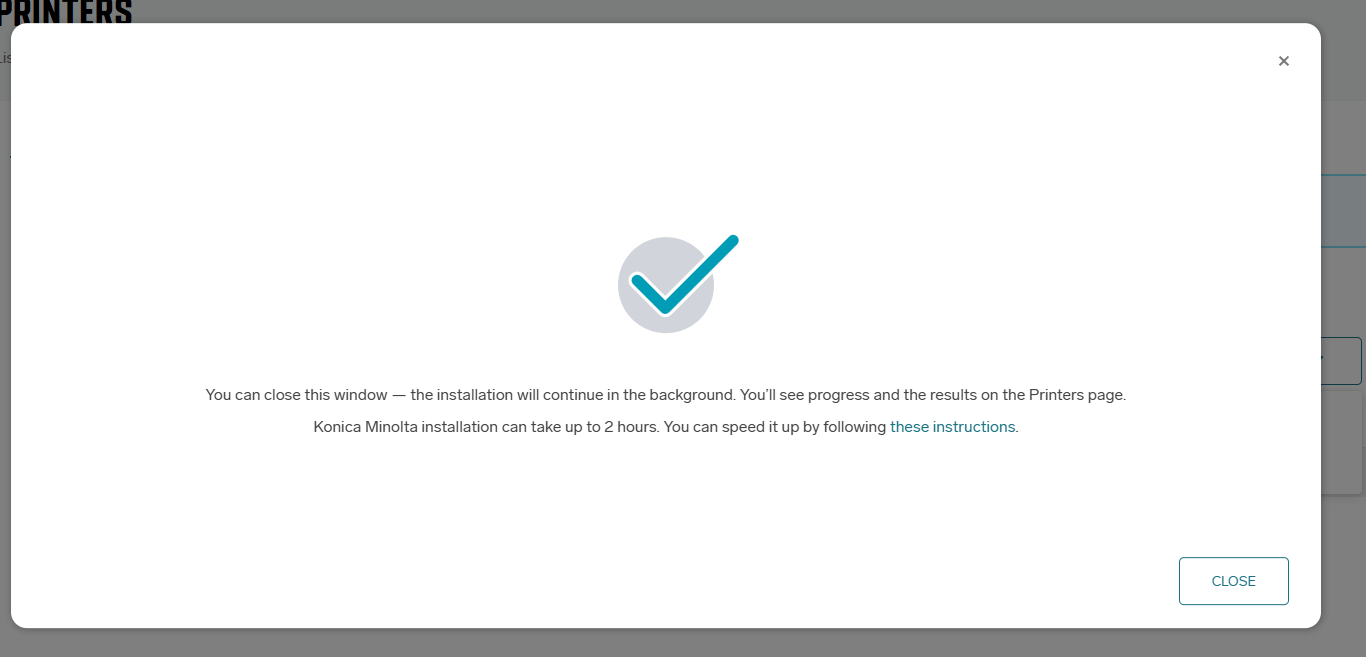
The installation continues in the background. You’ll see the progress and the results on the Printers page.
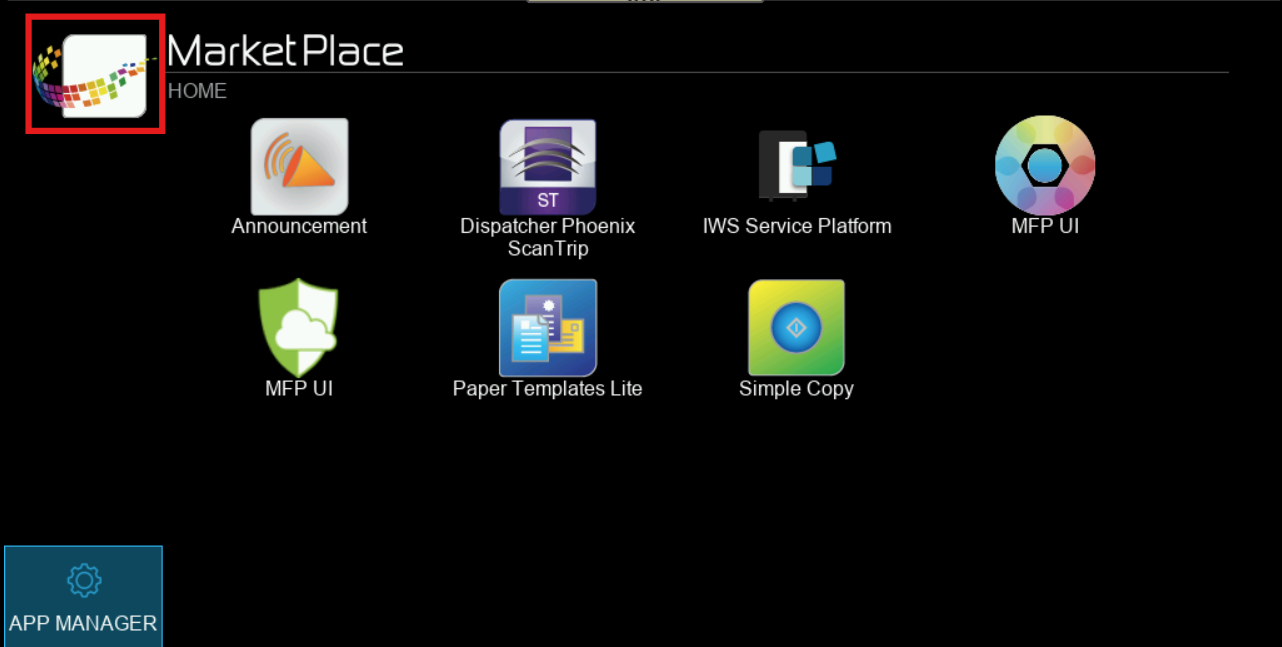
The default MarketPlace sync interval is 1 hour, but it can be turned off. If it's turned off, you need to trigger the sync manually. To speed up the installation, open MarketPlace app on your MFD and tap the MarketPlace logo on the MFD panel to trigger the sync immediately.
In case that provided KM MarketPlace account is not assigned as an administrator to desired device, two MarketPlace syncs are required. One for registering the device and second for the app installation and configuration.
Installation without linked KM MarketPlace account.
-
Select the printers you want to install a terminal on
-
Click on Actions button and click Install
-
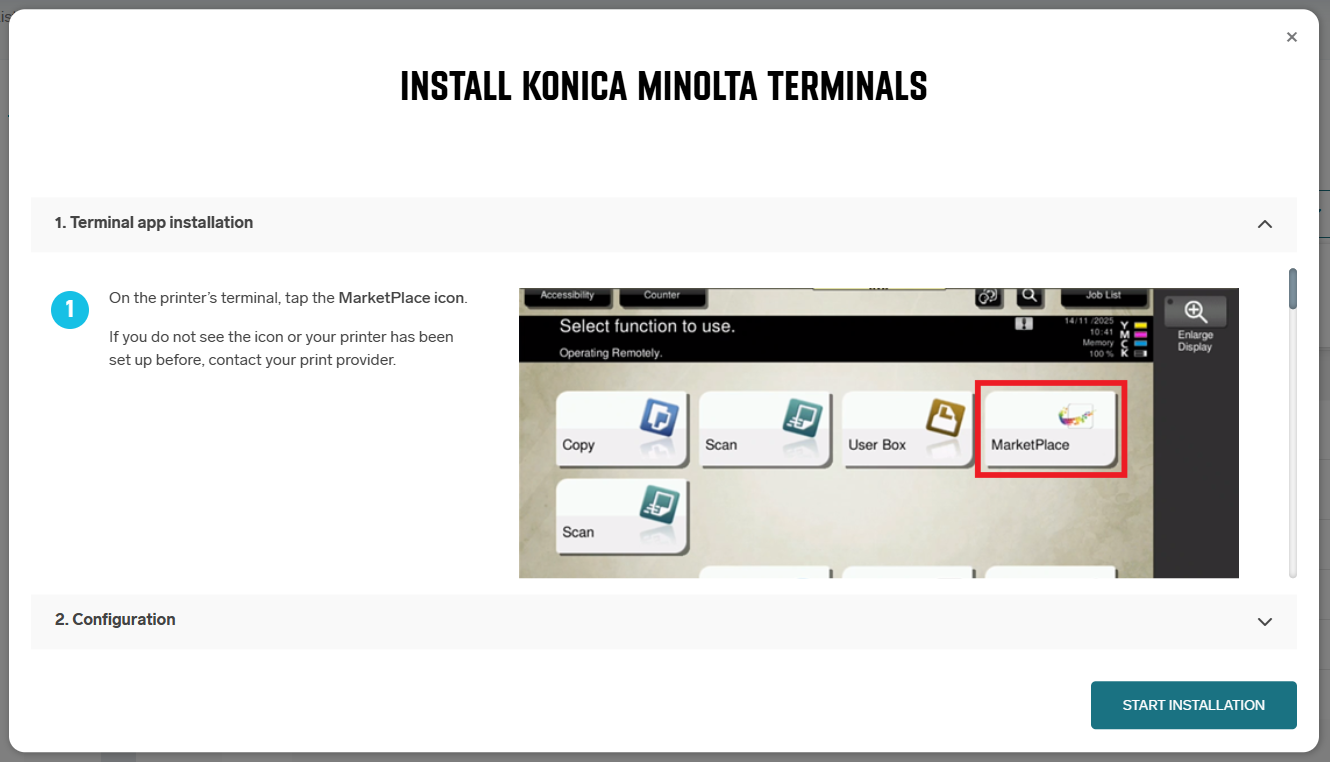
The manual setup guide is shown (see following image)
Troubleshoting
Installation fails
If the installation fails, verify the following:
-
The MFD is powered on.
-
Correct administrator credentials were provided.
-
The MFD is reachable from the PC running the installation.
-
You are not connected to a VPN, as it may interfere with device visibility.
-
Expand printer’s row to see error detail.
Logs and Diagnostics
For further investigation, you can check the following logs:
-
Deployment Tool logs:
C:\Users\<user>\AppData\Roaming\safeqclient\config\tdt\current\logs\deployment-tool.log
(Also included when collecting support information.) -
Cloud Client logs (link):
Contain information about downloading and preparing the Deployment Tool.
KM IWS Terminal application can not be opened after installation
-
If the KM IWS application appears after installation but won’t launch, wait a few minutes, then open the MarketPlace and run our terminal application from the homepage.
-
If you see “Reclaimed - The licence for this application has been reclaimed, and the application can no longer be used from this MFP,” confirm your MarketPlace account is linked to the correct country (see how to link accounts) and that the printer’s MarketPlace app uses the same region as your linked account.
-
KM IWS Terminal application fails on password error
-
If installation fails with “The device admin password is set to a default password. Update it on the device and try again.”, change the MFP admin password on the printer so it no longer uses the default. For security, installation cannot proceed with the default MFP admin password.
-
If installation fails with “The device admin password is too short. Update it on the device and try again.”, change the MFP admin password on the printer to one at least 10 characters long.
KM IWS Terminal application fails on “The printer hasn't connected to MarketPlace in 7 days. Check the printer connection and try the installation again.”
-
This may indicate that MFP is not connected to the internet or cannot reach the selected MarketPlace server. Ensure a connection is available and try again. If the problem persists, contact your solution provider.