
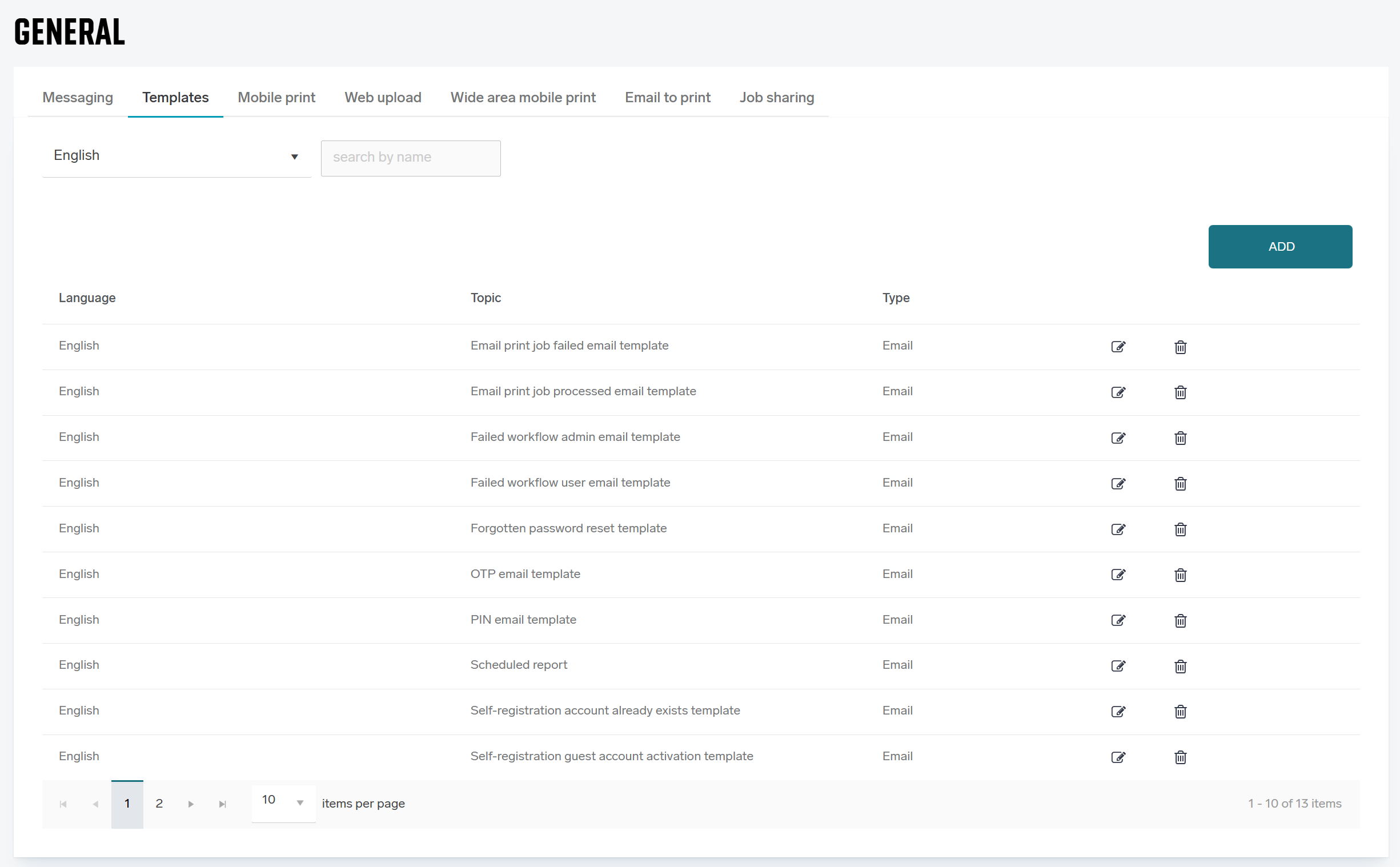
On Templates tab in Settings > General settings, you can manage templates of RICOH PMC used for email notifications. Templates define the structure and content of emails sent by the system. This includes notifications for standard system functionalities, such as guest account registration, job processing results, or scan delivery.
You can also create completely custom templates to suit your specific needs. These custom templates can be for example used in combination with triggers to send notifications based on customer-defined conditions.
You can define templates in any of the supported languages.
Predefined Templates
The system comes with several predefined templates covering various features. By default, these predefined templates are provided in English only.
You can modify these current templates or create new templates in the language of your choice to suit your organization's needs.
Template Usage
The selection of which template is used for a specific functionality is defined on that functionality's settings page. For example, to select the template used for Email to Print notifications, you must navigate to the Email to print settings tab.
Be aware that when a template is deleted, the functionality associated with that specific notification may stop working.
Managing Templates
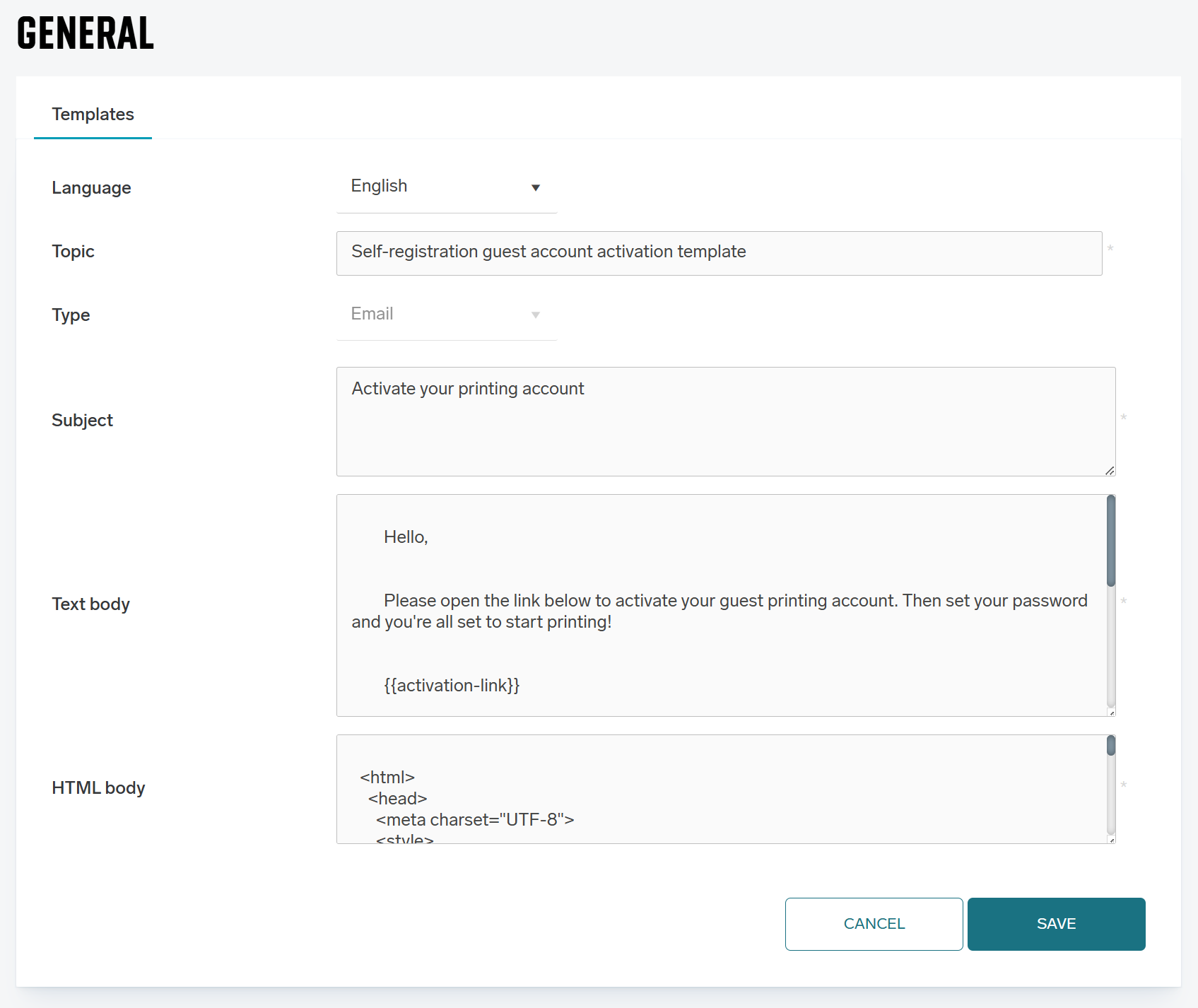
Each template configuration consists of the following fields:
-
Language – Select the language for the template. This setting determines how dynamic content within variables is localized.
-
Subject – The text that will appear in the email subject line.
-
Text body – A plain text version of the email content. This is rendered if the recipient's email client does not support or allow HTML versions.
-
HTML body – The main content of the email supporting rich text formatting.
Template Variables
Templates contain variables that are dynamically replaced with actual data when the email is generated. Each template type has a specific set of usable variables available to it.
Localization of Variables The content generated by variables respects the Language setting of the template. For example, the variable {{expiration-time}} will be rendered differently based on the chosen language:
-
English: "2 hours"
-
German: "2 Stunden"
The same variables can be used in both the HTML body and the Text body.
Variables are context-scoped: the set available to a template depends on what triggers the email, because that is what supplies the values. A variable used in a template that does not provide it is left unreplaced in the sent message, so check the tables below before adding one to a template. If a value you need is not listed for that template, it is not available there.
Variables by template type
|
Template |
Variables |
|---|---|
|
One-time password email |
|
|
PIN email |
|
|
PIN expiration notification |
|
|
Failed workflow — user email |
|
|
Failed workflow — administrator email |
|
|
Scan is ready to download |
|
|
User input required |
|
|
Self-registration — standard account activation |
|
|
Self-registration — guest account activation |
|
|
Self-registration — account already exists |
|
|
Self-registration — guest account expired |
|
|
Forgotten password reset |
|
|
New administrator invitation |
|
|
New trial account created |
|
|
Email print job — processed and failed |
|
|
Scheduled report |
|
|
Job sharing notification |
|
|
Mobile activation email |
|
|
Setup completed and account created notifications |
|
|
Account expiration and removal notifications |
|
{{customer-name}} and {{login-link}} are the only variables shared across several template types.
Variables in trigger-driven notifications
When a template is sent by a trigger, the following variables are available and take their values from the object that fired the trigger.
|
Variable |
Value |
|---|---|
|
|
Name of the user |
|
|
The user's one-time password |
|
|
The user's PIN |
|
|
Name of the document |
|
|
Date the document was created |
|
|
Name of the input port the document arrived through |
|
|
Name of the output port the document was sent to |
|
|
Error code of the failed job |
|
|
Correlation identifier of the job, for support requests |
|
|
Administrator-facing explanation of the failure |
|
|
User-facing explanation of the failure |
Variables available only with a specific action
These variables are filled only when the notification is sent by the action listed. Used elsewhere, they stay unreplaced.
|
Variable |
Requires |
|---|---|
|
|
The job sharing notification action |
|
|
The send-report action, or the scheduled report trigger |
|
|
Scan job flows — user input required, and scan ready to download |
Creating your own variables
Beyond the built-in variables, a trigger with a document attribute condition can define new variables, which are then usable in the template that trigger sends. This is configured entirely in the Triggers section of the Web administrator interface.
There are two ways to do it:
-
Named groups in a regular expression. If the condition's match pattern is a regular expression containing named groups, written
(?<myvariable>...), every matched group becomes available as{{myvariable}}. -
Direct attribute mapping. Writing the condition value in the form
attributeName={{myvariable}}copies the value of that document metadata attribute into{{myvariable}}.
The names are yours to choose, so a template can carry values specific to your own document metadata.
Variables from other features
Variables offered by other parts of the product are not automatically available in templates. In particular, the variables used to build file names in scan workflows — for example {{userFullName}} — belong to scan workflows only and cannot be used in email templates. Use the tables above as the definitive list for templates.