
In the PMC Web UI navigation menu, expand Reports and click Audit logs sub menu item.
The Audit logs feature flag is available only in the Y Soft-hosted cloud environment and a role with permission to view logs and view reports. If account privacy features are turned on the audit logs web access is not available.
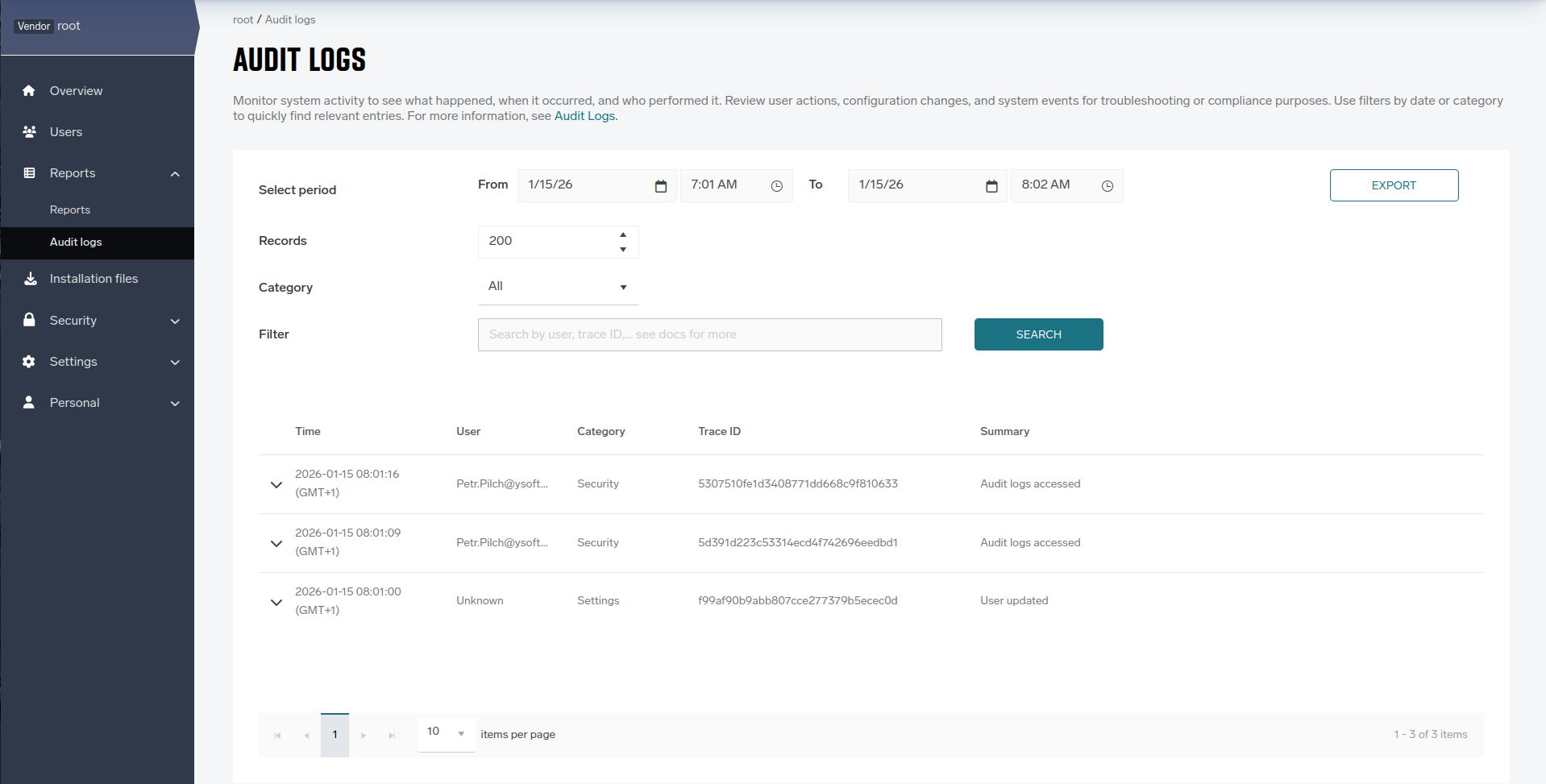
Overview
-
Audit logs list “who did what, where, and when” within the selected account, helping with security, troubleshooting, and compliance tracking.
-
The page only shows events for the currently selected account/vendor.
Page layout
-
Select period: Choose the start and end date/time to define the time window for events to search; widening the window returns more events, narrowing returns fewer and can speed up queries.
-
Records: Sets how many log entries are returned per page for each search, up to 1000; use a smaller value for faster responses.
-
Filter: Enter text to match common fields (for example, user email, username, event name, or object name) to get better results. Use the full email/username to get desired data.
-
Search: Executes a query using the currently selected date/time range, record limit, filter and category; the table is empty on first load until Search is clicked.
-
Export: After running a search, click Export to download the currently displayed audit log results as a JSON file; only the data returned by your most recent search, including any selected filters, date/time range, record limit, will be included in the exported file.
Text Filter
The Audit logs text filter supports advanced matching to help refine search results:
-
Multiple words:
When the filter contains two or more words separated by space (e.g.,user login), results will include only audit logs that contain both words, in any order. -
Quoted text:
When the filter contains quoted text (e.g.,"user login"), results will include only audit logs that exactly match the quoted phrase. -
Wildcard text:
Filter supports wildcards (*) to perform partial matches:-
Document*matches any text starting with “Document” (e.g.,DocumentProcessing) -
*Documentmatches any text ending with “Document” (e.g.,ScanDocument) -
*Document*matches any text containing “Document” (e.g.,ScanDocument-506).
-
-
Mixed filter query:
When combining quoted text, normal words, and optional wildcards (e.g.,"user login" admin *failed*), results will include audit logs that match the exact quoted phrase and also contain the other specified words or wildcard patterns.-
Note: Wildcards inside quoted texts are not supported (e.g.,
"user login *failed*"). Filter does not validate or check for incomplete quotes or malformed wildcard expressions.
-
Categories
The Category filter groups audit log events by the product area they belong to. Selecting a category narrows the search to events from that group. All is not a real category — it returns events from every category.
-
Authentication
Sign-in related activity, including:
-
User logins and whether they succeeded or failed
-
Sign-in through an external identity provider (SSO/OAuth), and errors reported by that provider
-
An administrator testing a login provider
-
-
Documents
What happens to stored documents — uploading, updating, downloading, or deleting a document. (Sending a print job or scanning is recorded under Print and Scan.)
-
Print
Print job activity — a job being sent to the system (including from mobile), released at a device, released all at once, or cancelled.
-
Scan
Scanning activity — running a scan workflow, submitting a scan, and listing the scan workflows available to a user or device. (Scan to Email is currently recorded under Others.)
-
Users
Searching for users and groups in a connected directory or identity provider. (Creating, changing, or deleting users, groups, and roles is recorded under Settings.) -
Settings
This is the main place to see who changed a setting. It covers configuration and administration changes across the system, grouped as:
-
Identity & access: accounts, users, groups, roles, permissions, login providers
-
Infrastructure: devices, terminals, locations, servers, storage
-
Feature configuration: print, scan, and mobile settings
-
-
Security
Access to sensitive areas — someone opening or searching the audit logs, and a partner or administrator accessing a customer's account, along with the reason they entered for accessing it. -
Others
Anything that doesn't fit the categories above — for example, Scan to Email, document conversion, card registration, directory synchronization, device configuration, credit and balance changes, licensing, certificates, and general preference changes.
Usage tips
-
If expected events are missing, change the time window or increase the record limit, then click Search again to reload results for the new criteria.
-
Start broad (no filter, wider time range), then add a filter or category to drill down quickly; this mirrors common “filter‑then‑paginate” UX patterns for admin dashboards.
-
For identity lookups, search by the complete email or username to get desired data, then use Category to focus on Authentication, Authorization, or similar groups if available in the dataset.
Working with results
-
Results table: Each row shows key fields such as Time (event timestamp), User (actor), Category (event group), Trace ID (request correlation), and Summary (human‑readable description) for quick scanning of activity.
-
Expand details: Click a row to expand and view full event payload details like request context, IP/user agent, result (success/failure), and object identifiers when present; use Trace ID to correlate with backend logs for incident investigations.
-
Copy to clipboard: In the expanded event payload, click the Copy to clipboard icon to copy the payload as pretty-printed JSON to your clipboard.
-
Incremental review: Raise the Records limit or adjust the time range to iterate through larger periods in manageable chunks
Behavior notes
-
No automatic refresh: The page does not auto‑load data; click Search to fetch events for the chosen criteria.
-
Permissions and scope: Visibility depends on the enabled feature flag and user role; content is scoped to the selected account to avoid cross‑tenant exposure.